
This article will walk you through removing a departed user from LawToolBox.
***UPDATED FLOW 5/5/2026****
____________________________________________________________
How to remove a user in LawToolBox:
- Admin user go to admin.lawtoolbox.com > Users > Actions > Delete
- Mail forwarding: recipient selection Yes or No (automatically audit the recipient user's calendars)
- Delete User > Confirm
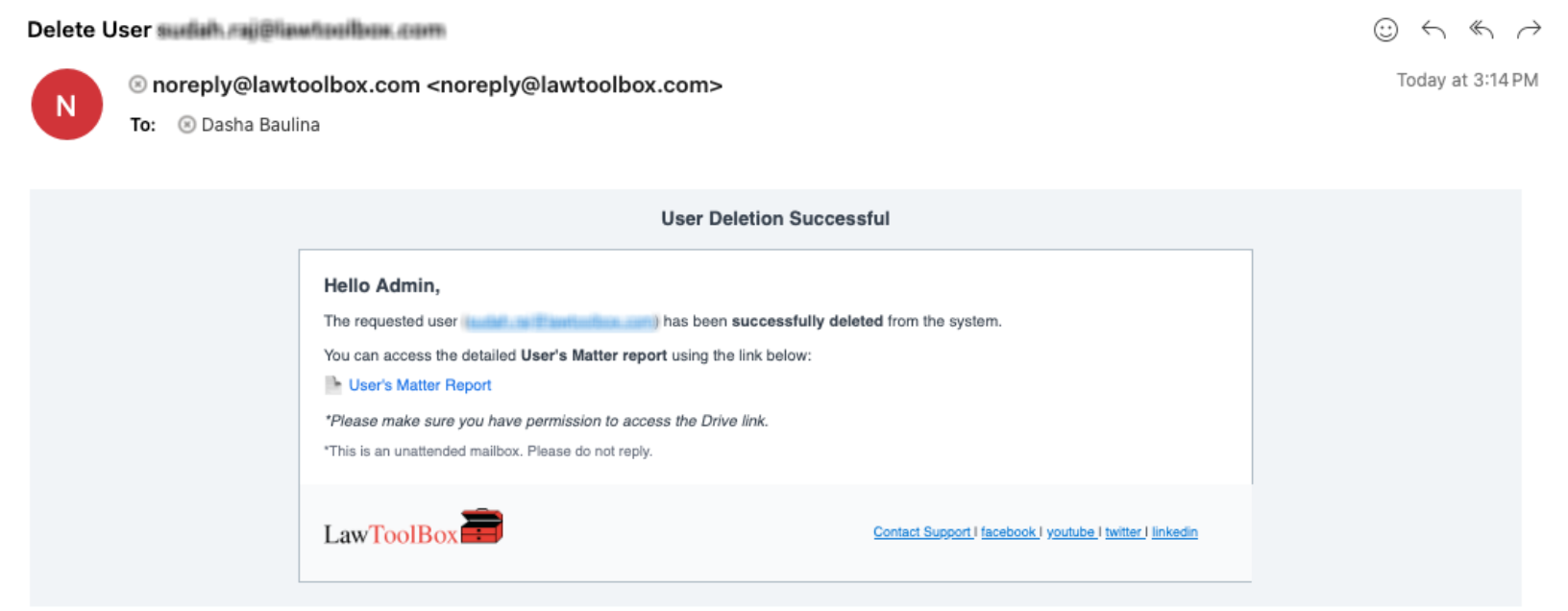
- Email confirmation sent when the task is completed
Important Notes:
Before following the steps to remove a user, please check with your IT:
1) Make sure they have a valid M365 license to avoid Undeliverable emails (Business Basic).
- If the user has been departed for a long time and have been converted to a shared mailbox, contact your M365 Admin to add a temporary mailbox license.
2) Make sure they have mail forwarding disabled to avoid forwarding emails and calendar events.
- We recommend temporarily disabling mail forwarding to avoid canceled calendar events forwarded to others.
Common issues if the above is not verified:
Undeliverable: 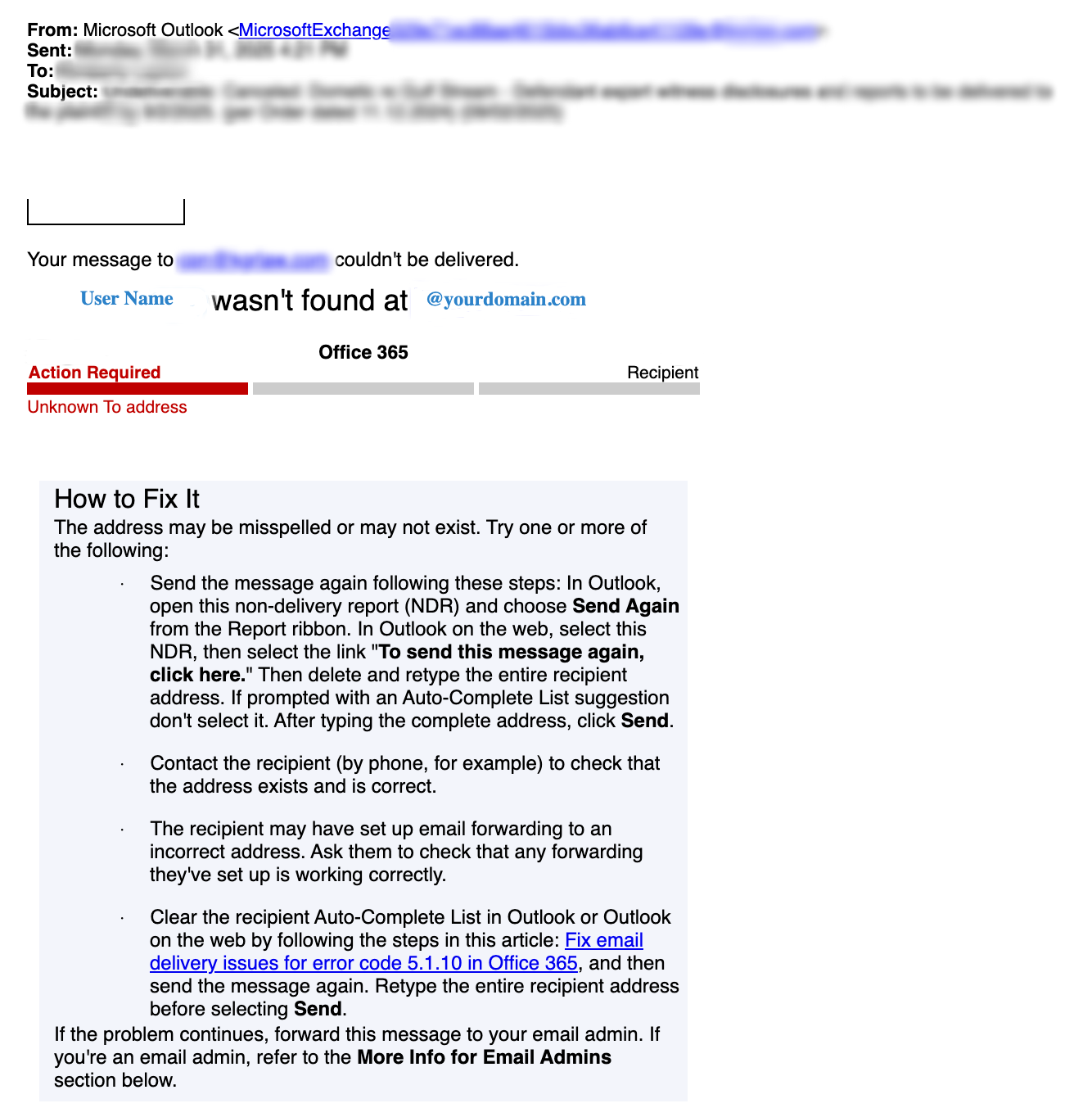 | Unlicensed: 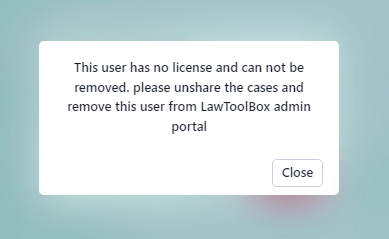 Mail forwarding: 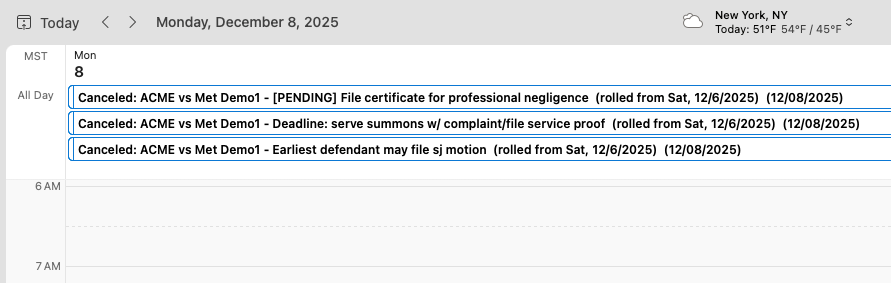 |
____________________________________________________________
Step-by-step:
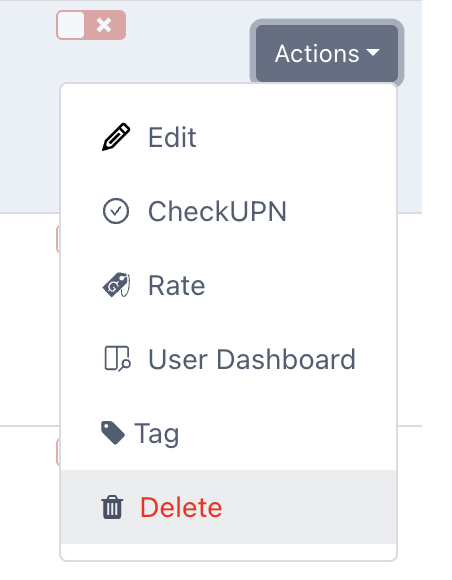
1. Remove User
Navigate to admin.lawtoolbox.com > Users > Actions > Delete
____________________________________________________________
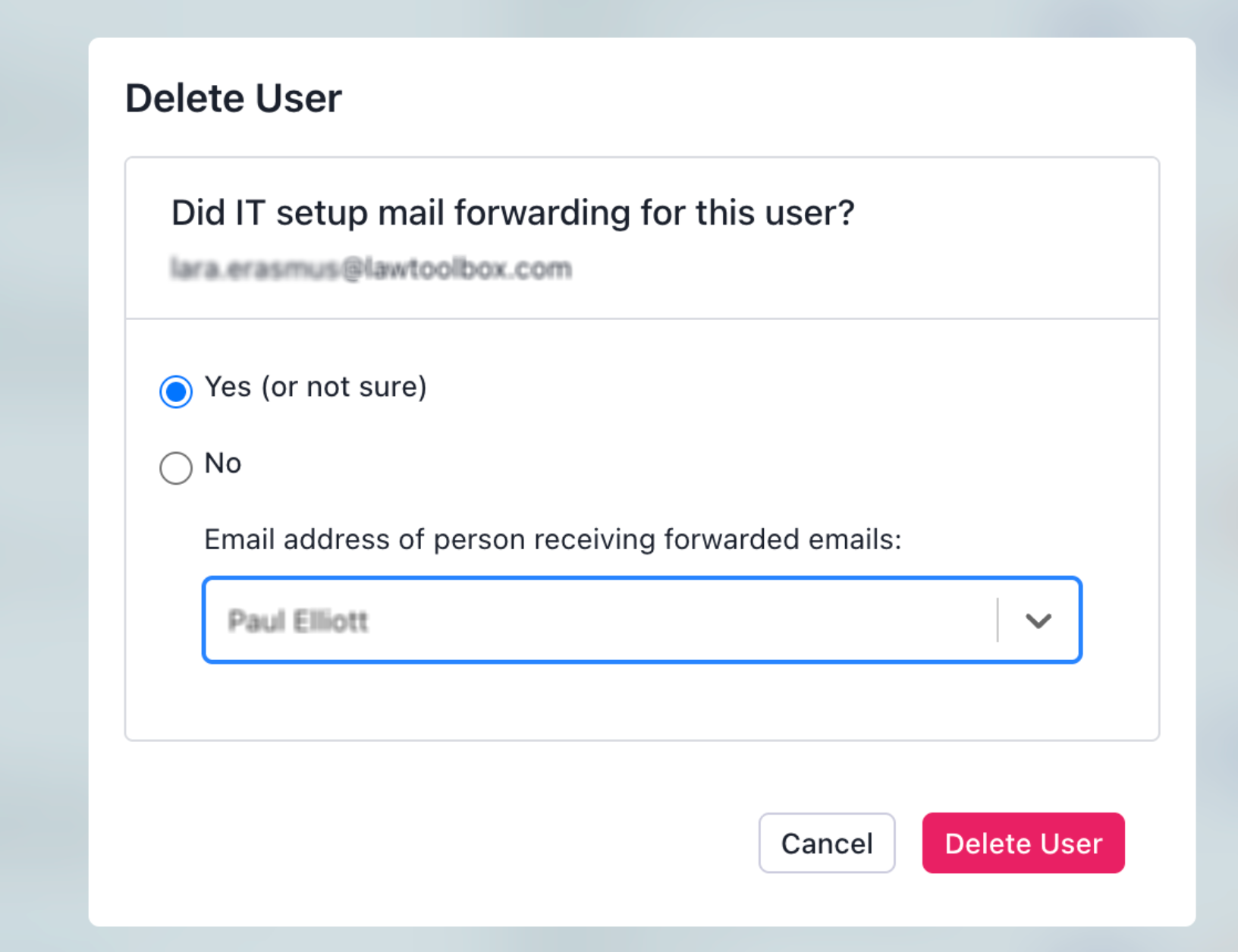
2. Mail forwarding: Select one
Used for monitoring upcoming calendar events
- Yes or not sure, select a user in the dropdown who is receiving the forwarded emails from the departed user
- This feature will automatically audit any calendar entries that may be forwarded from a departed user.
Important Note:
We do not support multi-recipient mail forwarding. We recommend temporarily disabling mail-forwarding in 365
Mail forwarding can cause "canceled" for the recipient user on their shared deadlines as we remove all upcoming events from the departed user calendar.
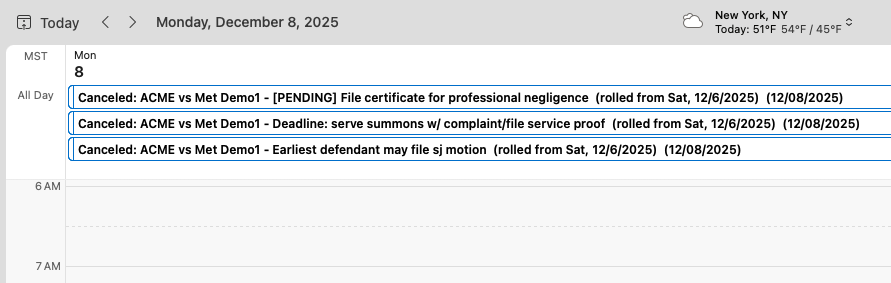
If you see cancelations after removing a user, you will need to force re-sync all the deadlines for the affected users:
https://admin.lawtoolbox.com/event/cancelled-events
____________________________________________________________
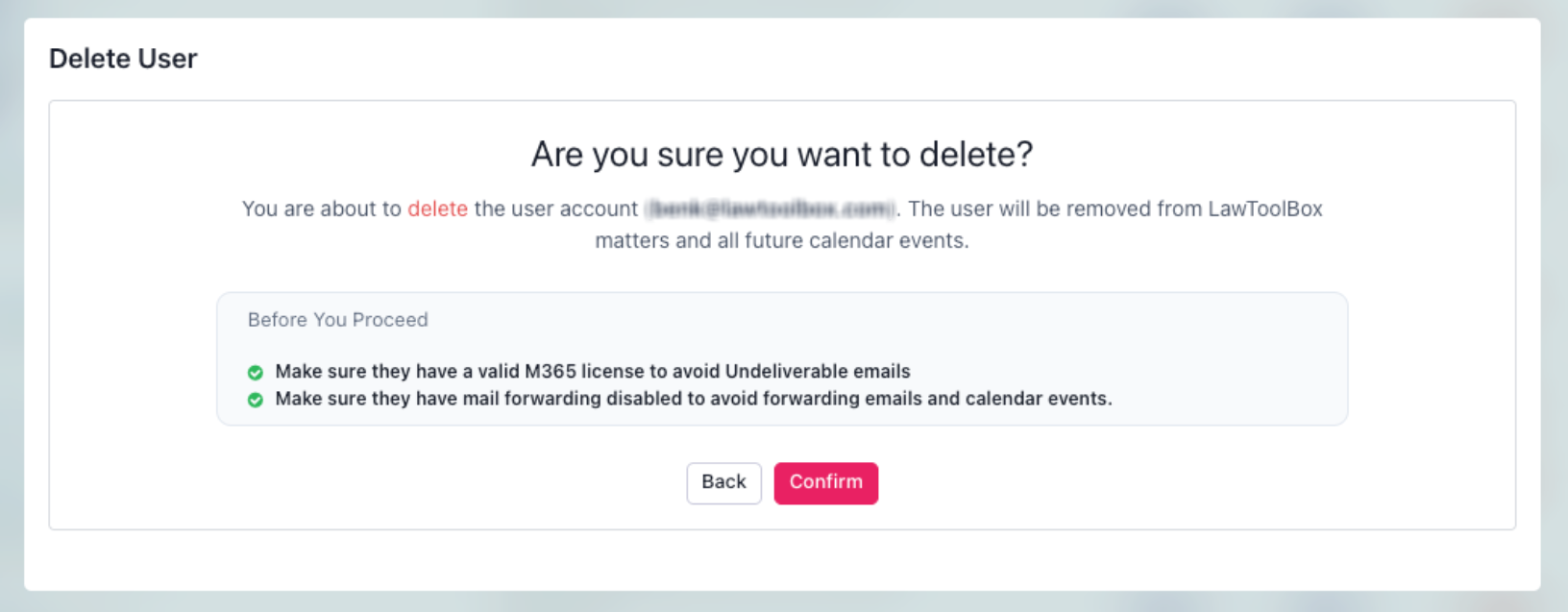
3. Delete user
Make sure they have a valid M365 license to avoid Undeliverable emails
Make sure they have mail forwarding disabled to avoid forwarding emails and calendar events.
Confirm you want to delete the user:
- If a user is associated with matters, it will keep the matters open and will only remove the departed user
- If a user is associated with outlook events, it will remove user from all upcoming events
____________________________________________________________
4. Background Job (NEW)
Removing users may take some time. LawToolBox has update this to a background job.
You will get an email confirmation when the job is complete.

To check if the user has been removed successfully, check Activity > Background Activity.
https://admin.lawtoolbox.com/activity/background
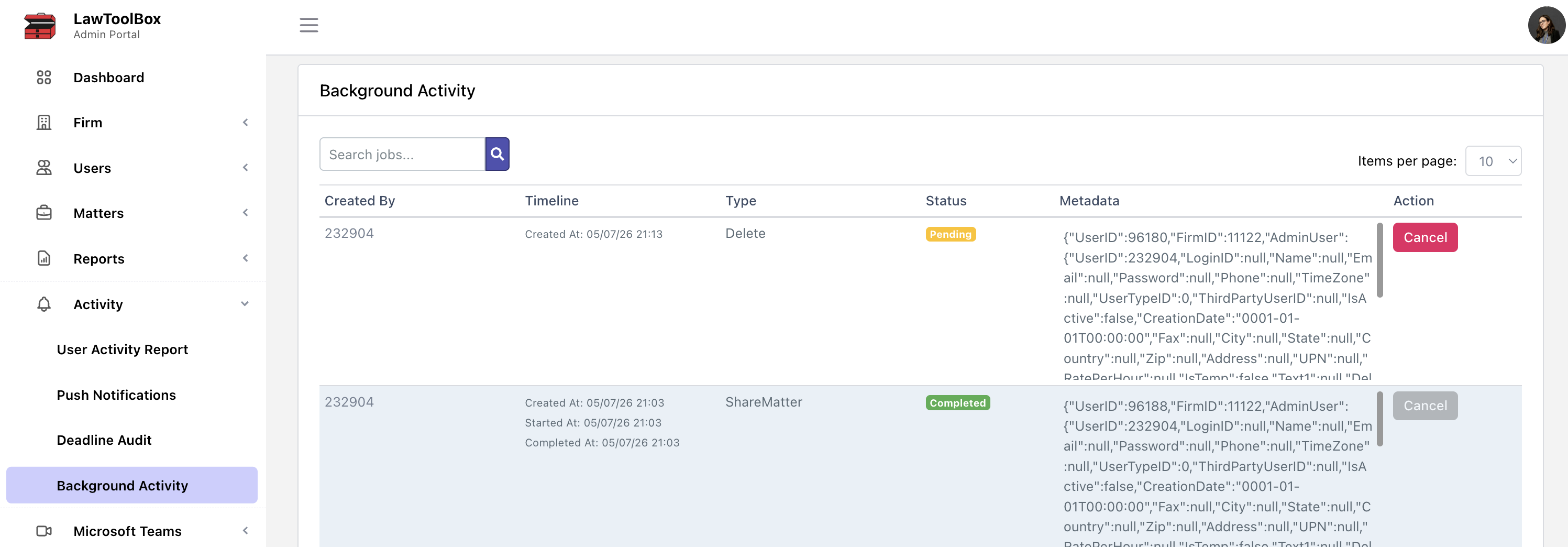
Success! Your user has been deleted from LawToolBox.
If you need to add a new user, please see Admin: How to add a new user in LawToolBox