
NetDocuments can be connected as a plug-in by your LawToolBox administrator. Additional fees may apply
Learn more: www.lawtoolbox.com/netdocuments/
Step 1: Activate in LawToolBox
This article will walk you through setting up the NetDocuments Integration with LawToolBox:
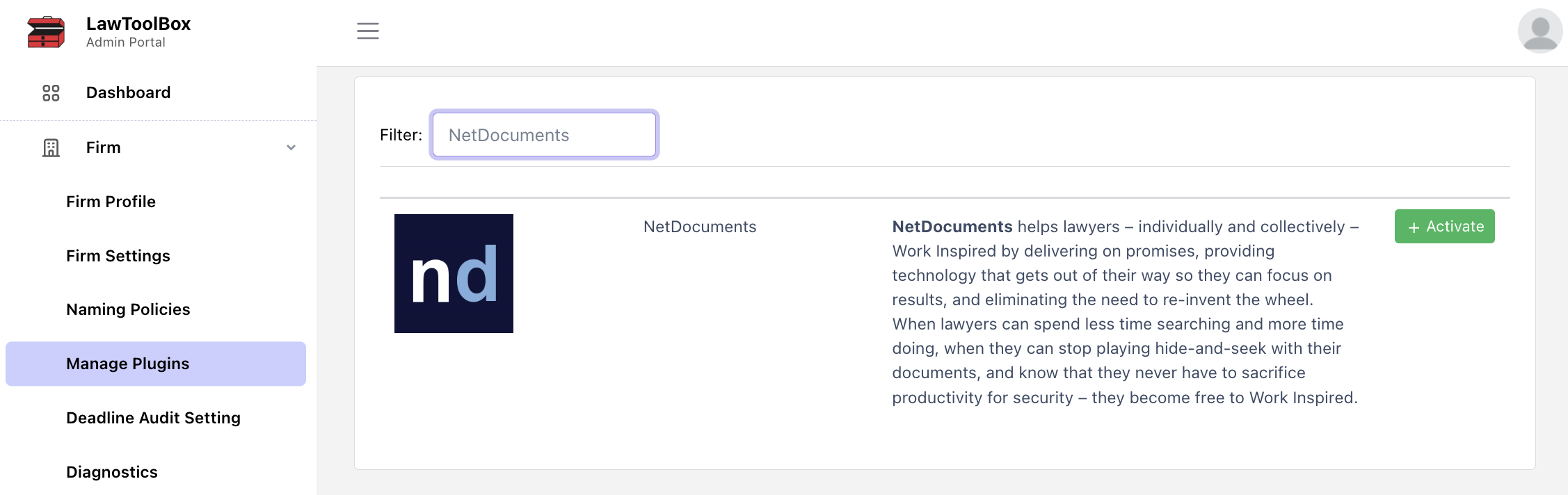
- Firm > Manage Plugins > NetDocuments > Activate
- Firm > Firm Settings > Turn off SharePoint options for "Document Management"
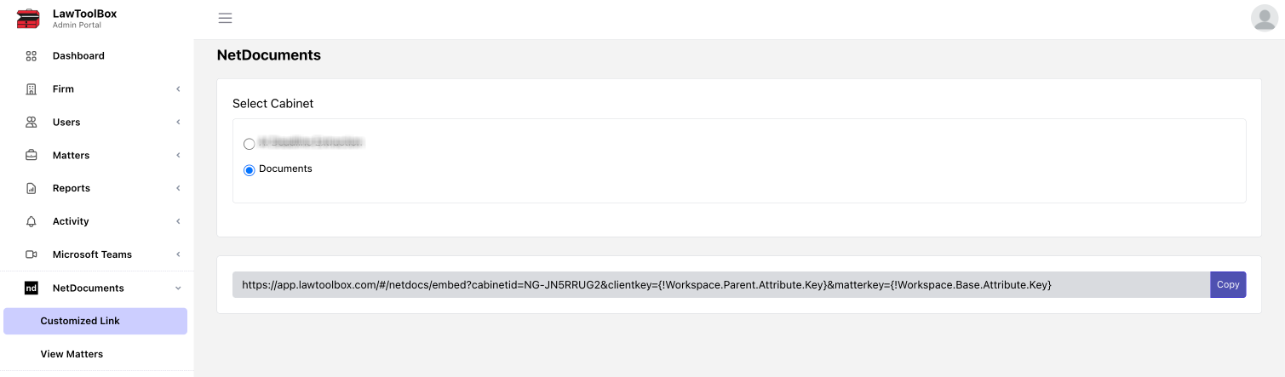
- NetDocuments > Authenticate > Customized Link > Generate Link > Copy
Step 2: Add to NetDocuments Tempate
- NetDocuments > Admin Console >
- Select Cabinet > Define workspace templates >
- Overview > Add web page
Step 3: Connect ND Matter to LawToolBox
- Open NetDocuments Matter
- Open the Overview page & Open LawToolBox
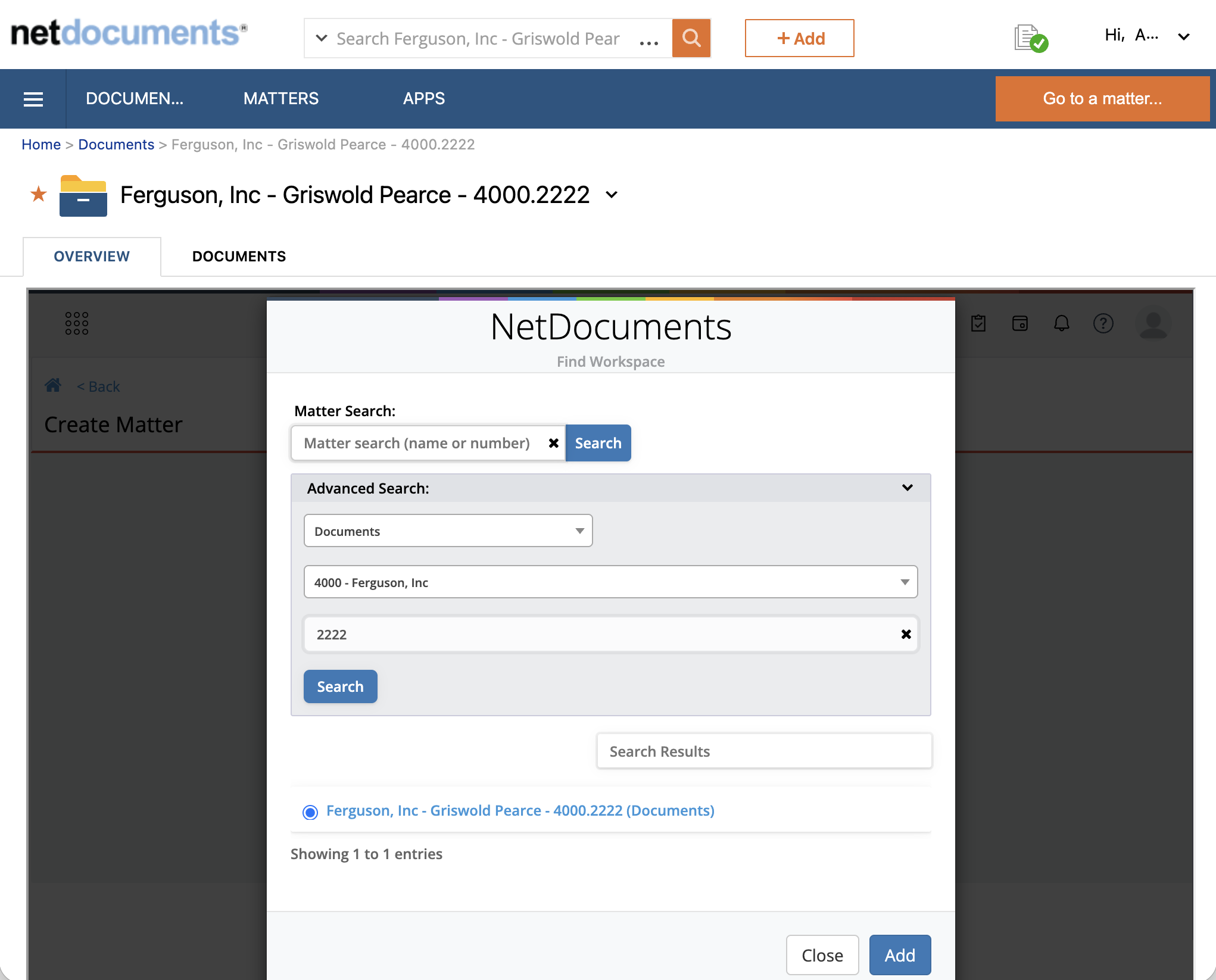
- Click + New Matter
- Matter Details from NetDocuments will automatically pull in
This article will walk your end users through how the integration works:
FAQ - DMS NetDocuments - LawToolBox plugin
_________________________________________________________________
Step by step:
_________________________________________________________________
Step 1: Activate Plugin & Authenticate in LawToolBox
Admin user for LawToolBox sign-in to admin.lawtoolbox.com
1.1. Activate Plugin
Firm > Manage Plugins > NetDocuments > Activate
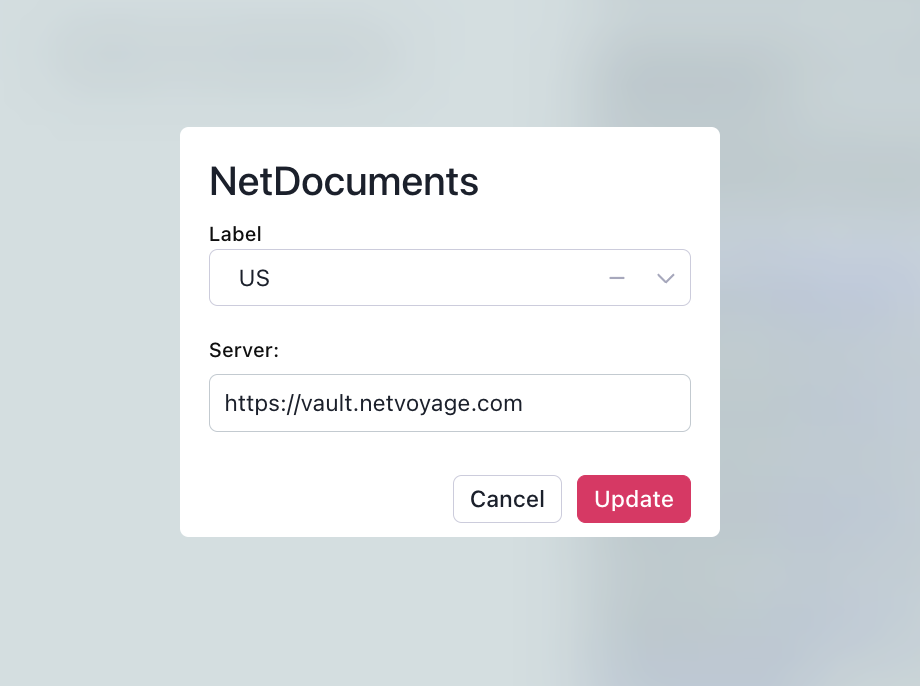
Select your Vault (US or Canada)
Select NetDocuments in the side panel and allow connection app.lawtoolbox.com > login > New Matter > Net Documents > Allow Connection
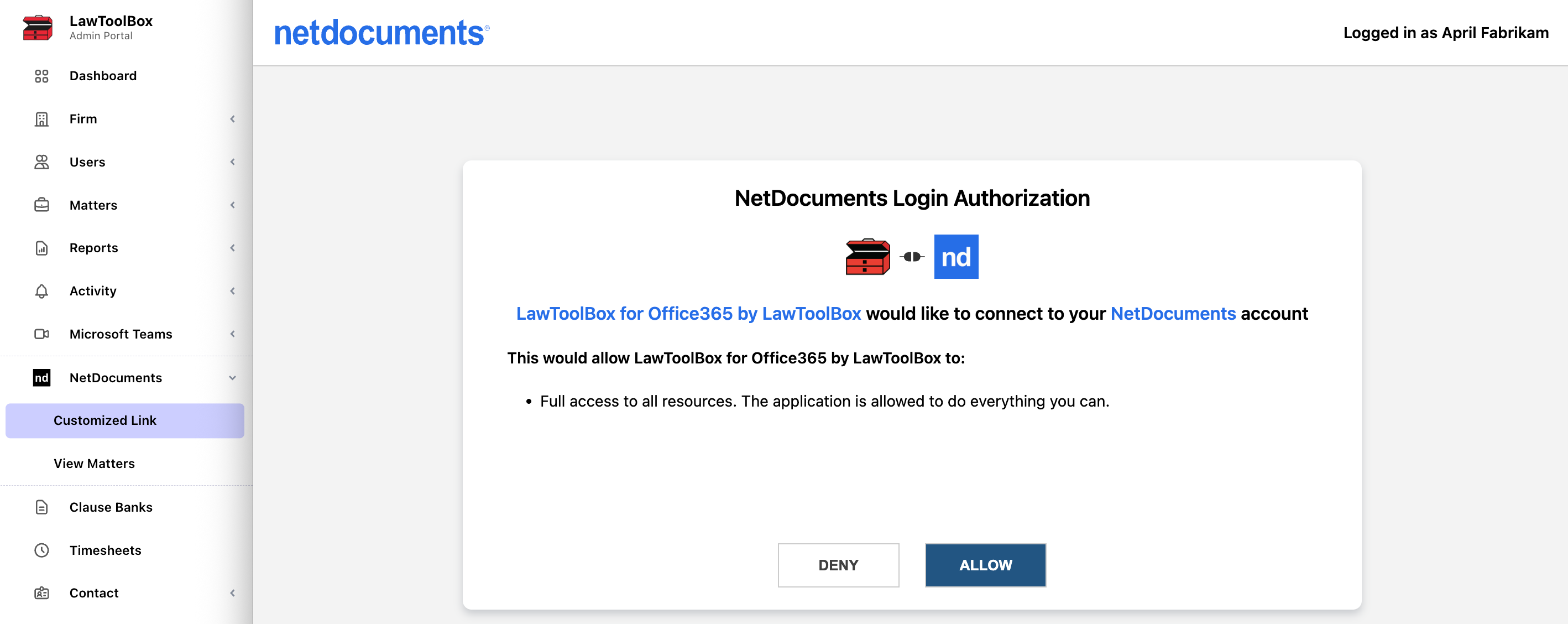
- Note: allowing connection in admin.lawtoolbox.com is unable to grant the authentication token
1.2. Get a Custom LawToolBox Link
Firm > NetDocuments > Select Cabinet > Generate link > Copy
1.3. Confrim Firm Settings
Firm > Firm Settings > Document Management (SharePoint) > Turn OFF all > Update

_________________________________________________________________
Step 2: Add to NetDocuments Tempate
_________________________________________________________________
2.1 Modify Cabinet Template
Open NetDocuments Admin Console
Click on the cabinet you use for client matters if you have more than one cabinet
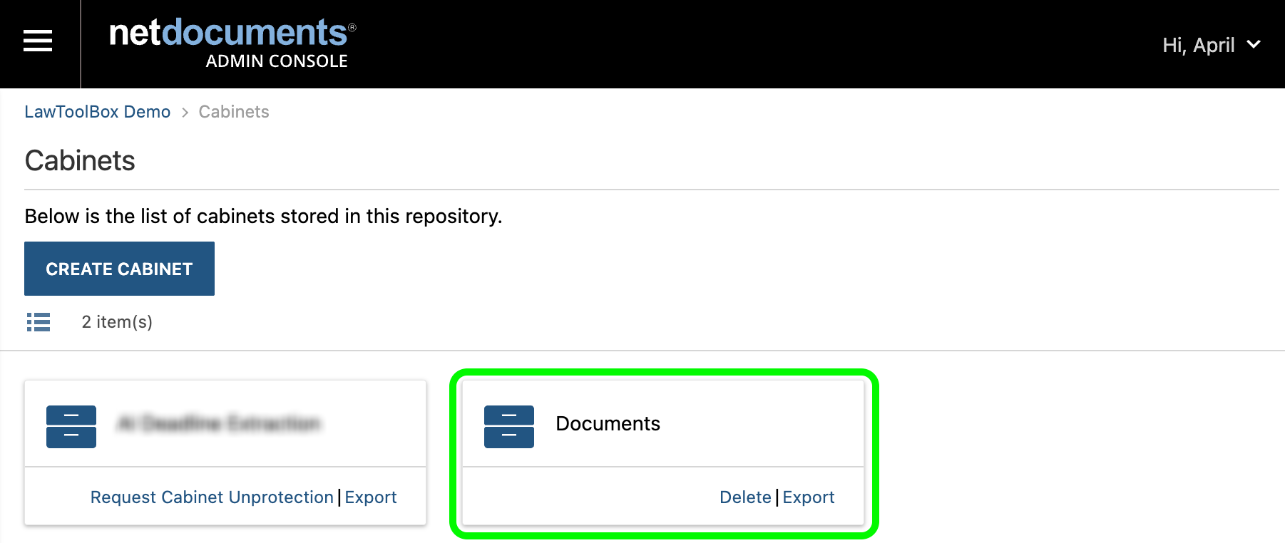
Top right corner: "Define workspace templates" link
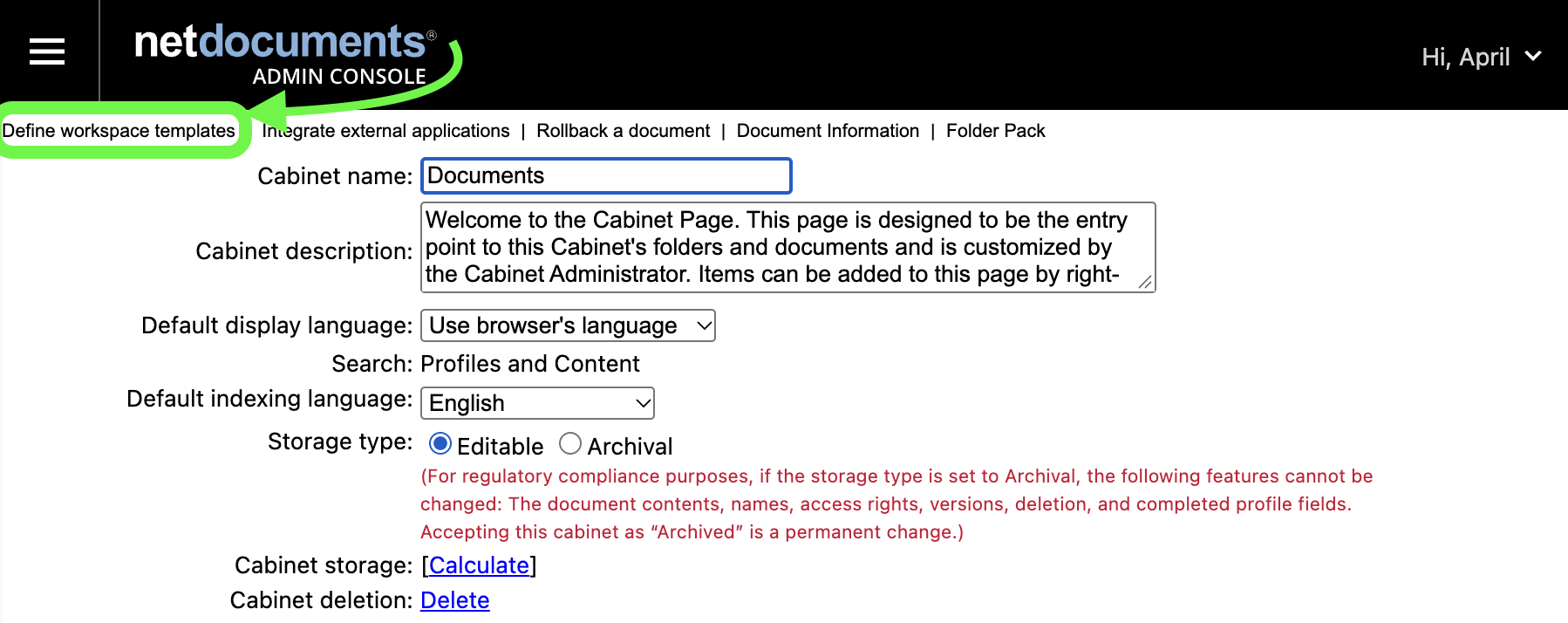
Scroll down to "Overview" > Add web page
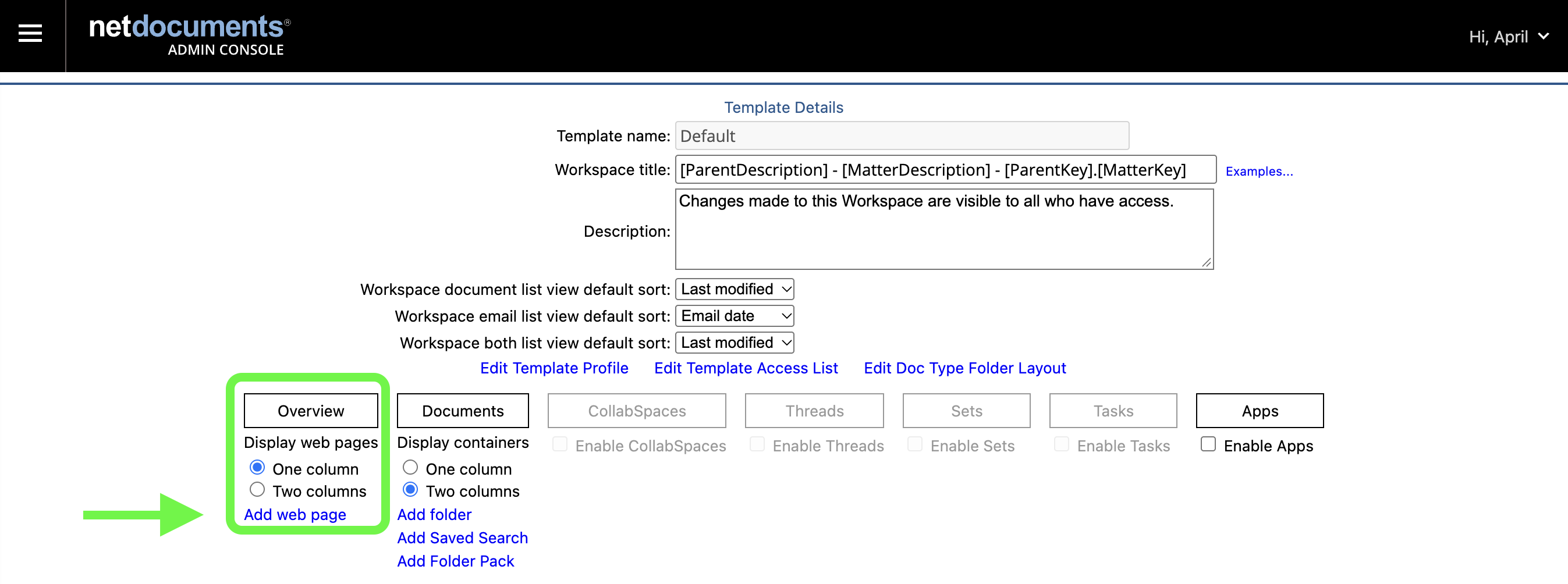
2.2 Add a Custom link to NetDocuments
Web Page Label: LawToolBox
- Height: 700 pixels
- URL: Paste copied customized link from LawToolBox

Save template: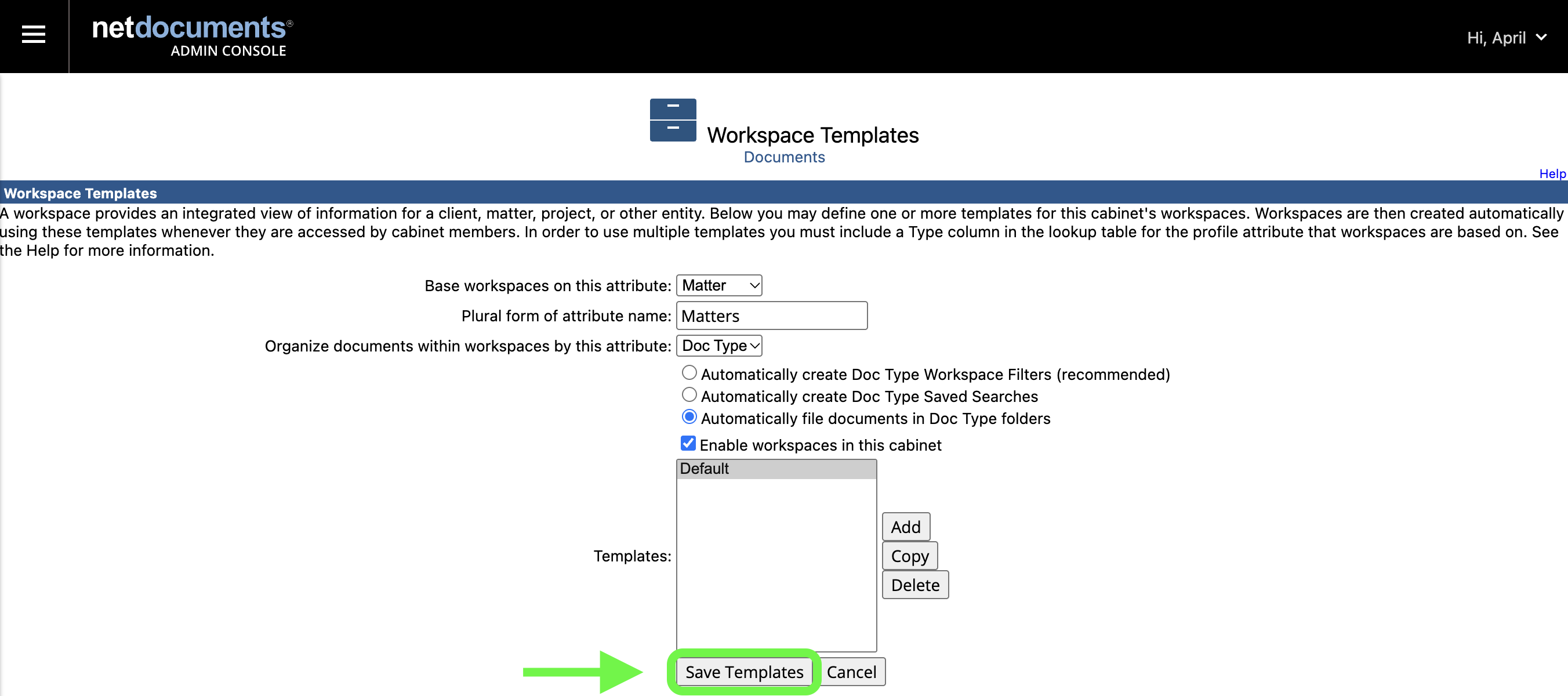
_________________________________________________________________
Step 3: Connect ND Matter to LawToolBox
_________________________________________________________________
LawToolBox will now show up on all "new" matters in NetDocuments
Existing matters:
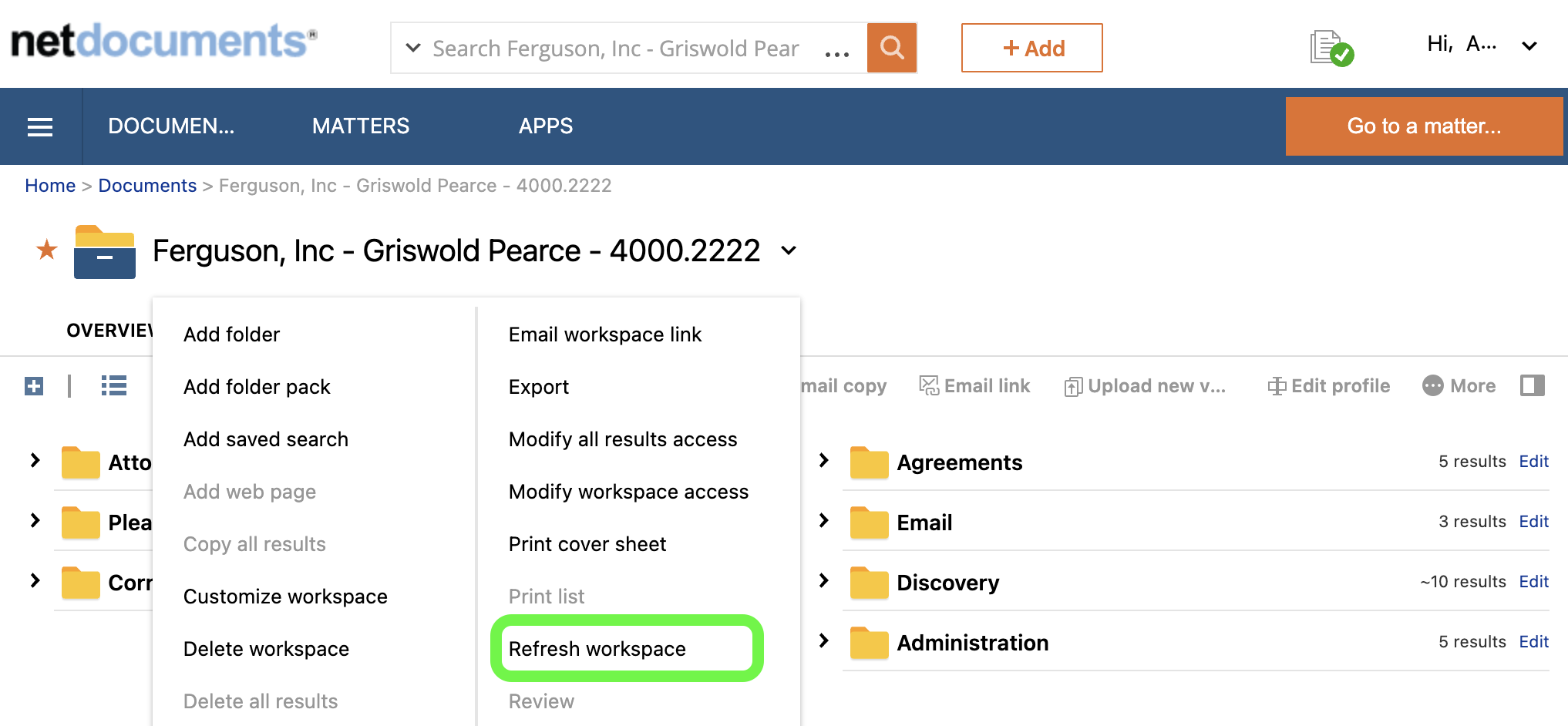
- "Refresh Workspace" to show the latest template
- Admin only access may have the option to "Refresh Workspace" for all matters
Open the Overview Tab and open LawToolBox to begin calendaring
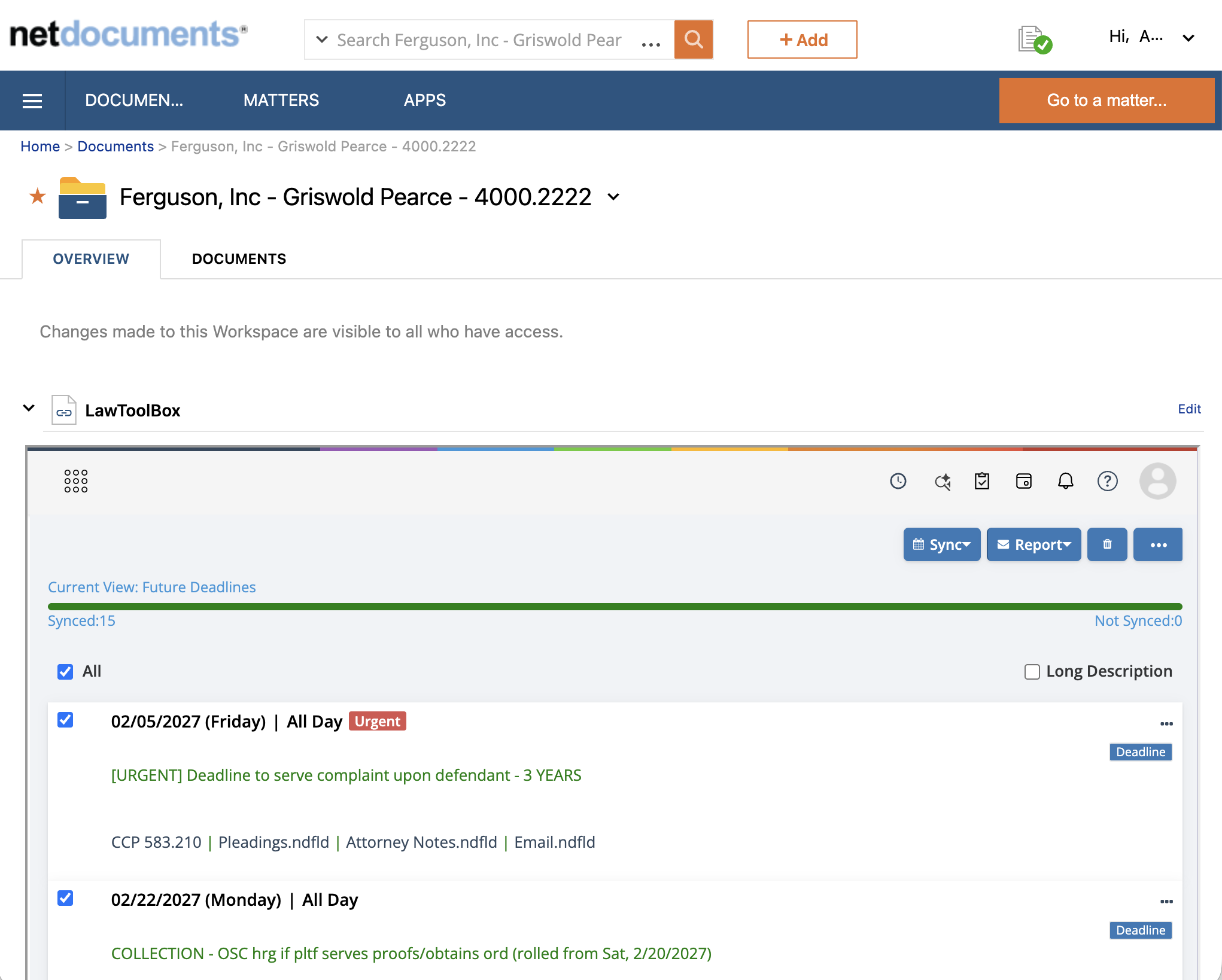
Going forward, Upcoming Deadlines are visible inside the matter workspace
Next:
To use NetDocuments see FAQ - DMS NetDocuments - LawToolBox plugin
Check admin.lawtoolbox.com to audit cases that have been connected to the workspace
