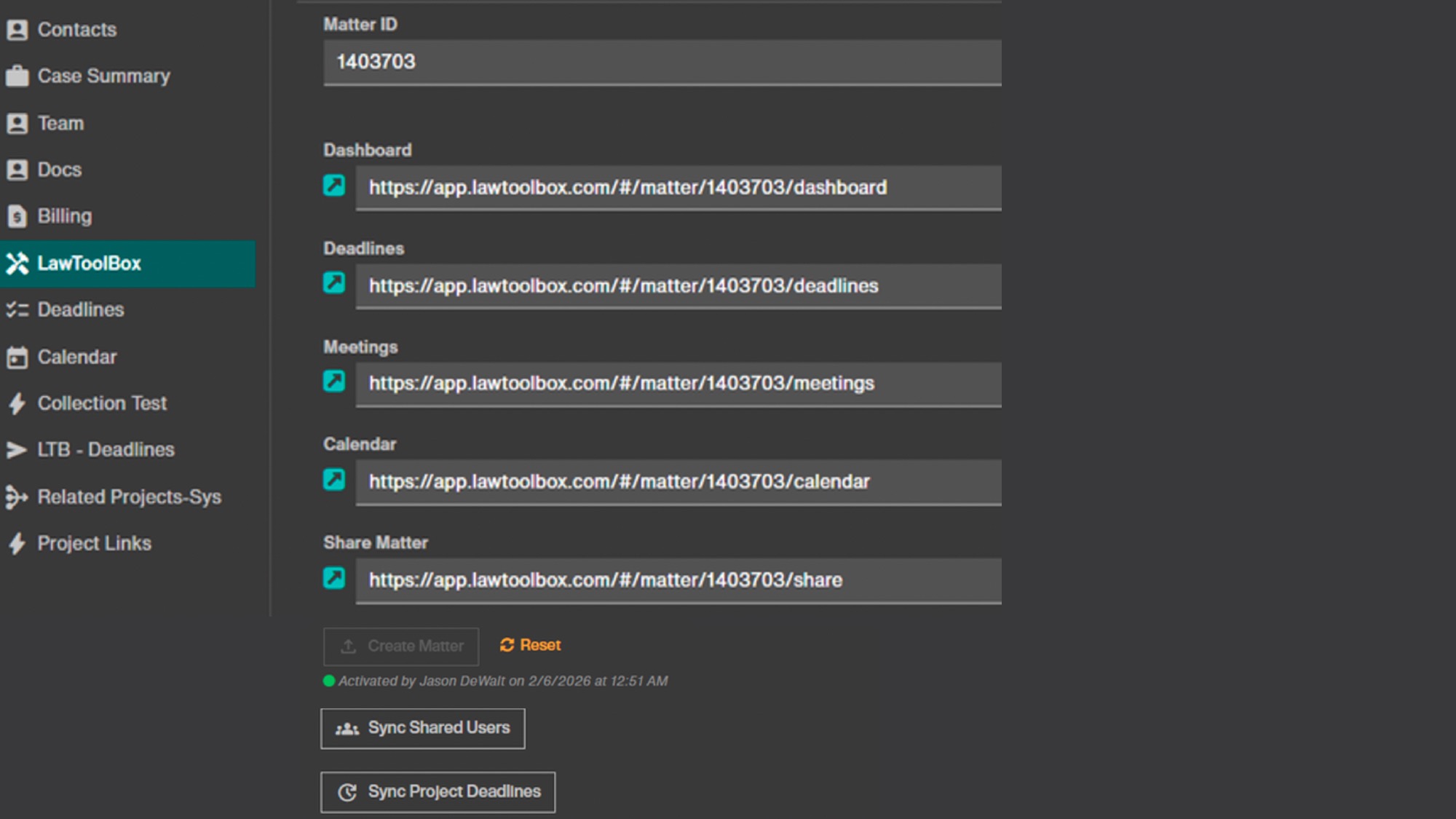
If your firm uses Filevine, you can connect your LawToolBox Account. Additional fees apply
Reach out to your LawToolBox AE for a quote to get started with this integration https://lawtoolbox.com/filevine/
After you have created your LawToolBox account, you can connect your Filevine account though our partnership with SyncForward Solutions.
Pre-Requisites:
Step 1: Complete LawToolBox General Onboarding for M365
Step 2: LawToolBox creates a unique user to connect to your Filevine environment
Step 3: Our partners will work with your to enable the connection between LawToolBox and Filevine
Note: We recommend getting this enabled before your initial training with LawToolBox.
This can be enabled at any time.
How to create a new matter in LawToolBox from Filevine
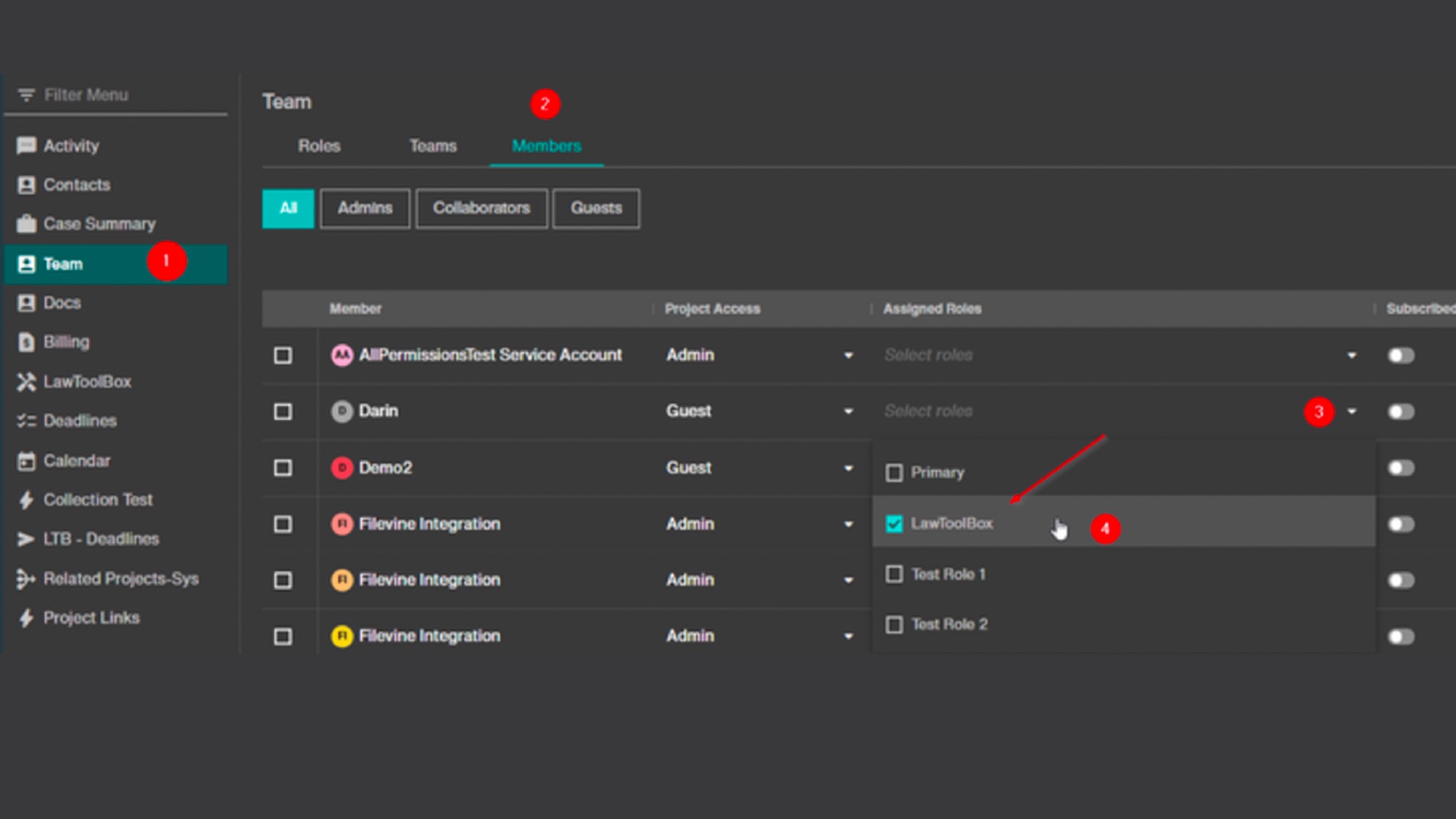
Step 1: Configure Team
Configure your "team" on the filevine matter
Assign LawToolBox roles for users who need to manage or see deadlines from LawToolBox.
You can add and remove LawToolBox roles at any point
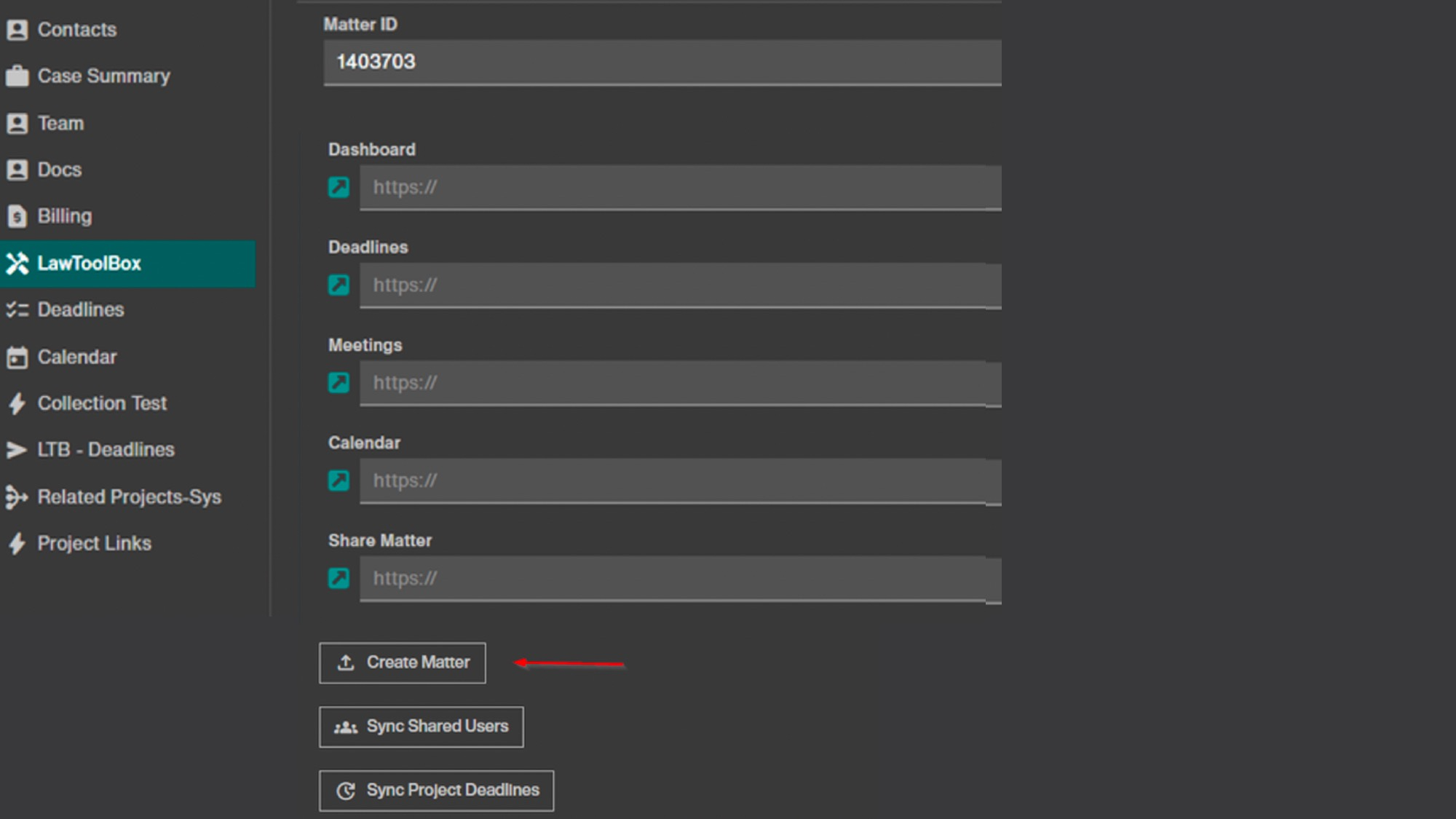
Step 2: Deadlines
If this mater is new, click "Create matter" to push it to LawToolBox
All the team members with the LawToolBox role will be added
Once the matter is sent to LawToolbox, click on the redirect links to jump to dashboard, deadlines or calendar
Or you can find these matters in your LawToolBox app
Check the "Deadlines" or "Calendar" tab in the filevine matter for events from LawToolBox in Filevine