If your firm uses Centerbase, you can connect your LawToolBox Account
Pre-Requisites:
Step 1: Complete LawToolBox General Onboarding for M365
Step 2: LawToolBox Sends your user ID's and Firm ID to Centerbase to connect
Step 3: Enable the integration for your Centerbase Users and create a test matter
Step 4: Decide if you will create LawToolBox matters as needed OR Bulk Activate All Matters
Note:
Your Centerbase matter form may be highly customized and may vary based on case type.
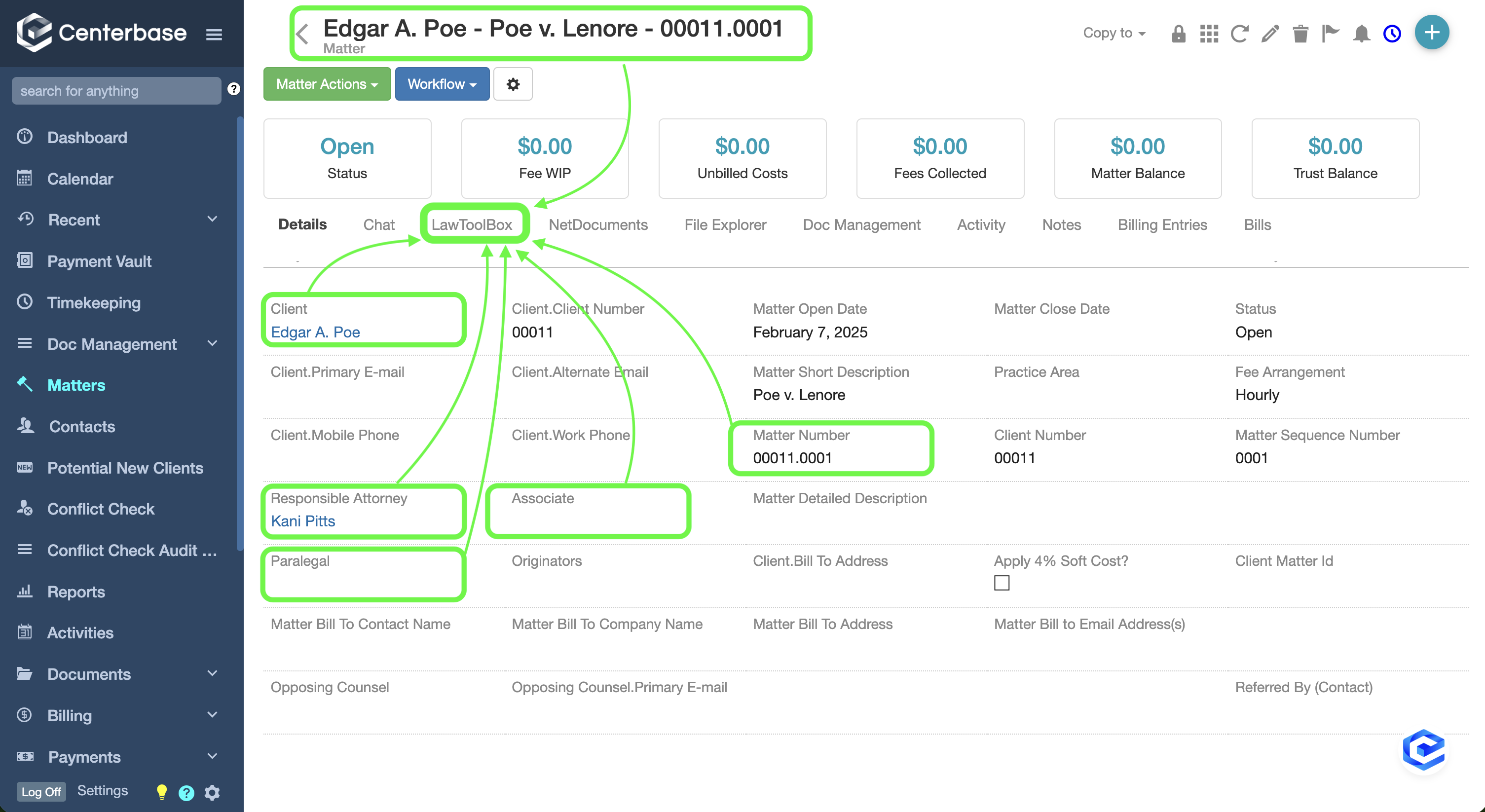
Here are the fields that get sent to LawToolBox for all matters:
- Matter Name (long)
- Client
- Matter Number
- Responsible Attorney, Associate Attorney and Paralegal. Othere users can be added direct from LawToolBox
Note 2: If one of the users on this form is no longer an active user, it will send the user details to LawToolBox.
You may need to remove them from LawToolBox.
______________________________________________________________________
Step by step:
Enable the LawToolBox options in Centerbase
Open Centerbase > Navigate to the Gear Icon > System Settings
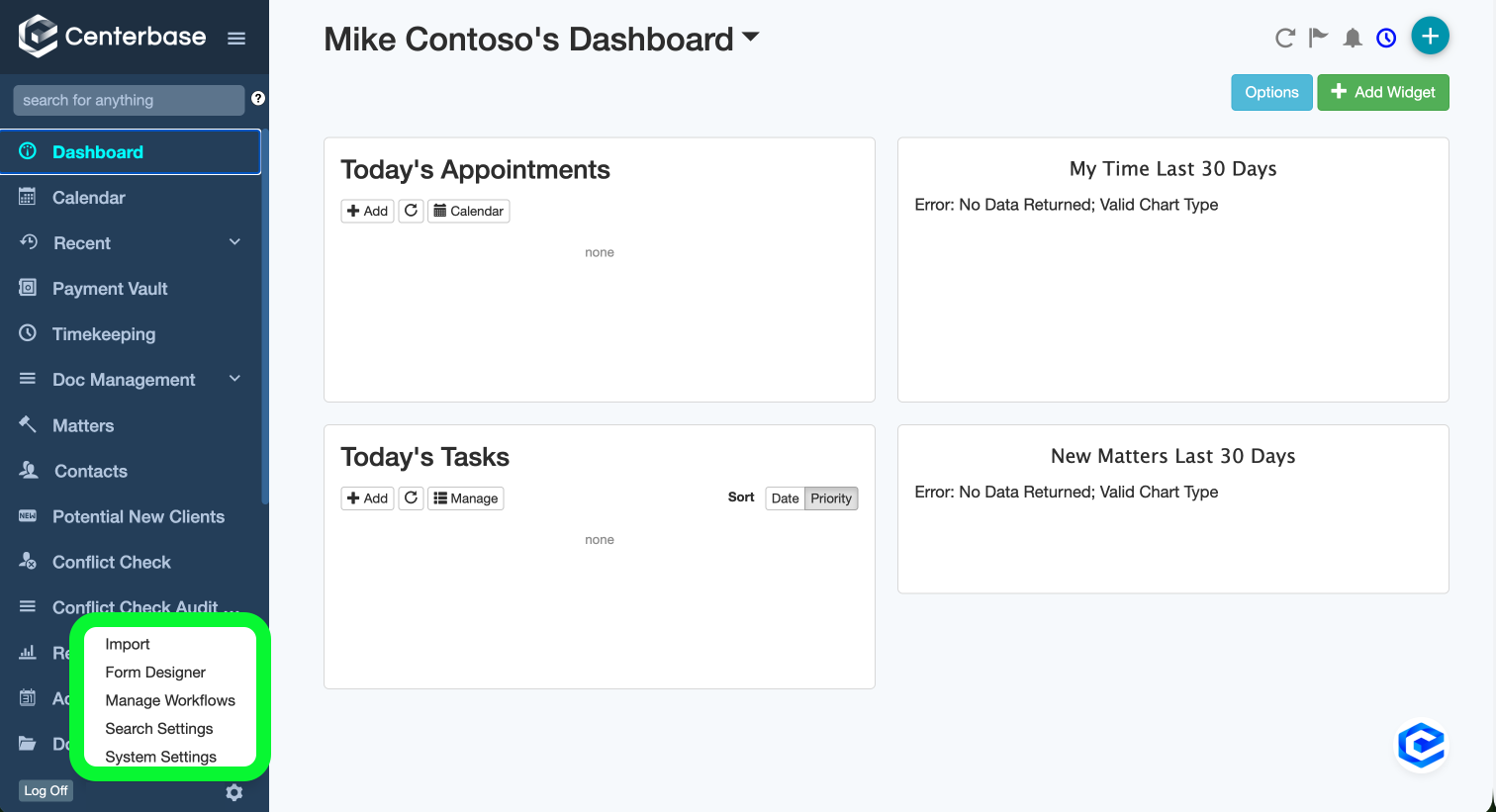
In System Settings:
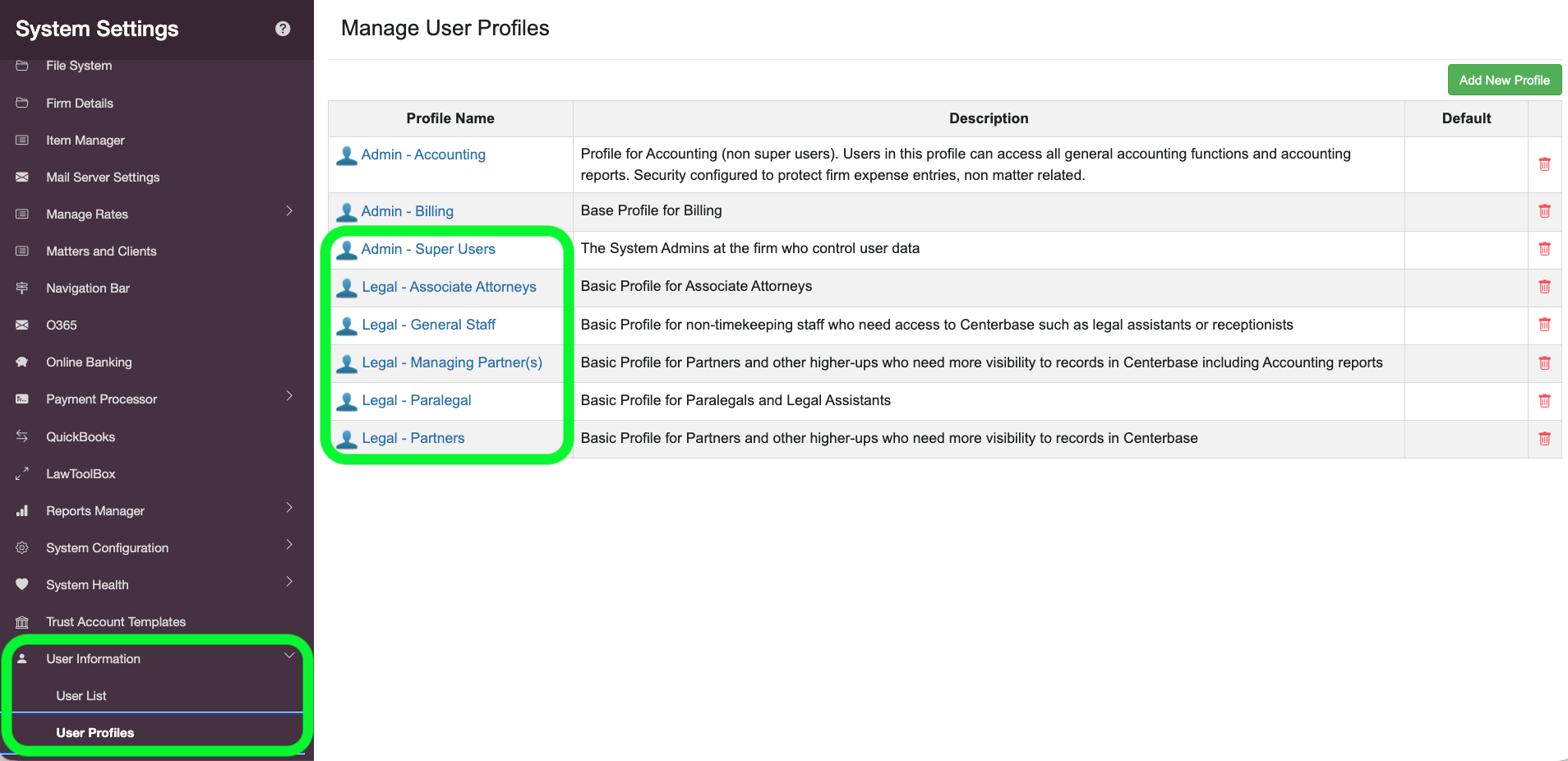
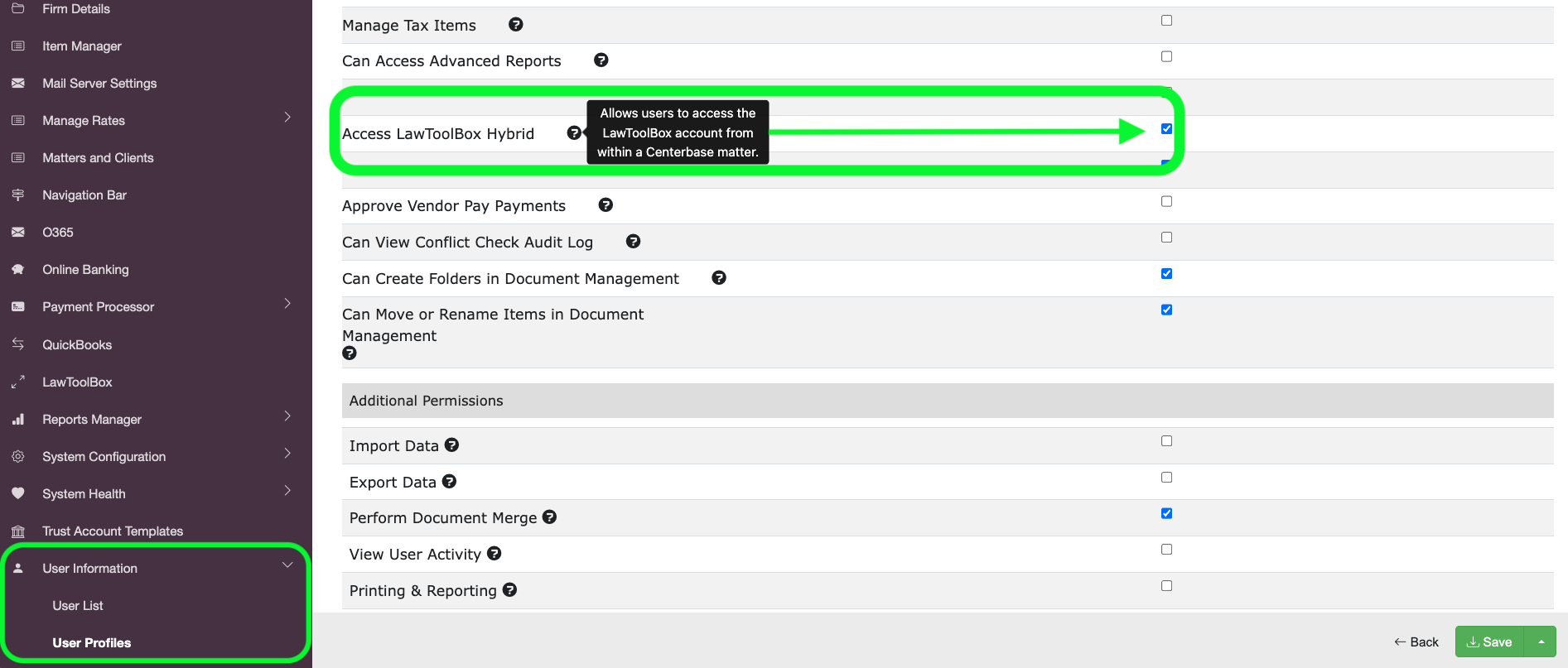
Open User Profiles > Manage Profiles
Repeat below steps for all profiles who need access to LawToolBox
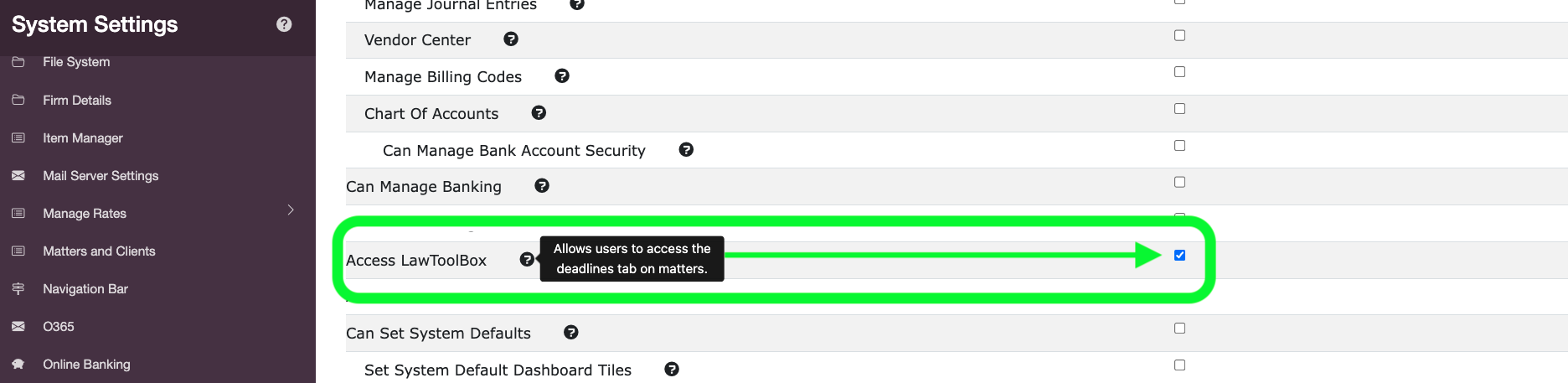
Find LawToolBox Settings x 2
- Access LawToolBox Hybrid
- Access LawToolBox
Access LawToolBox = On
Access LawToolBox Hybrid = On
Save
Test matter activation:
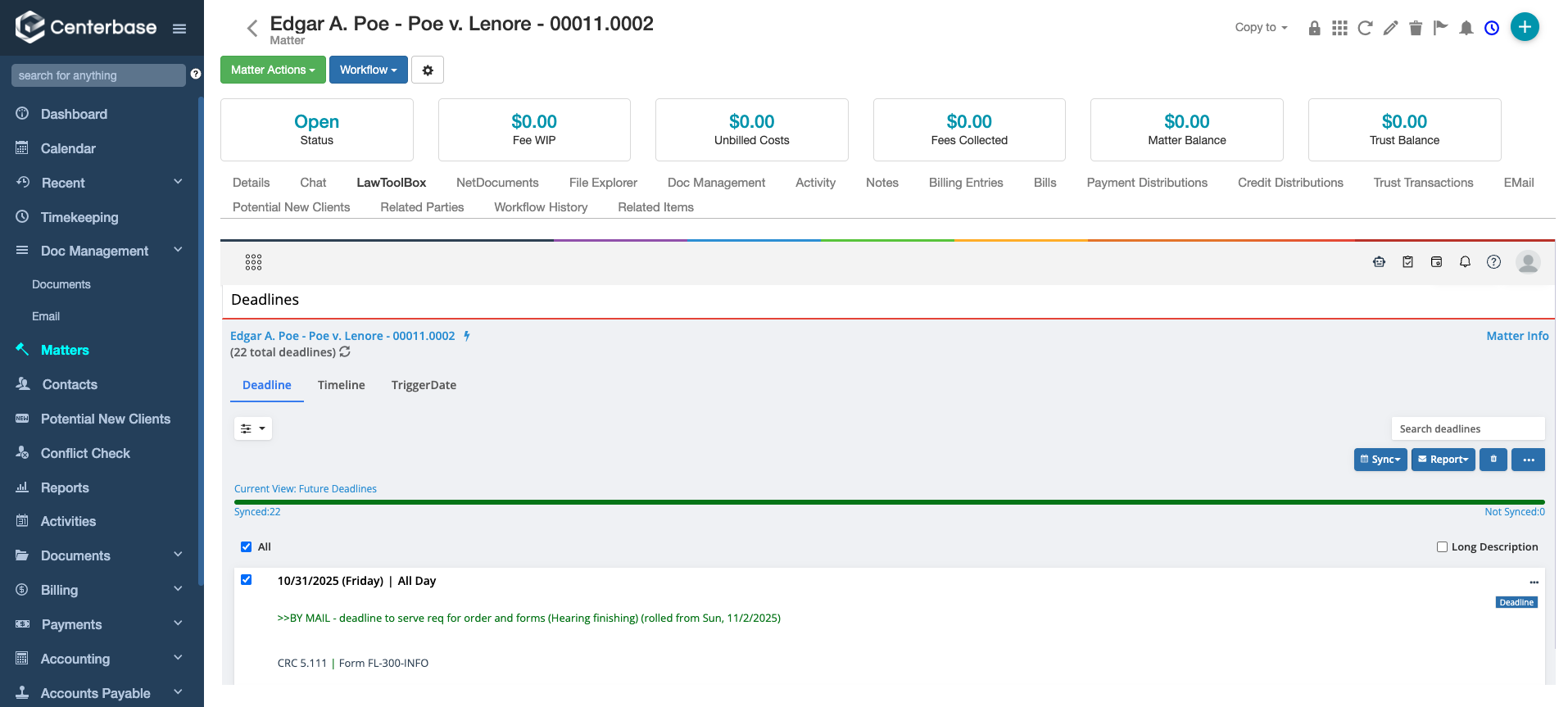
Use Matter Actions > Send Matter to LawToolBox
If no errors, you are all set! If you see errors, please provide details to your support contact. There may be incompatible fields in your customized form.

IMPORTANT:
Decide if you would like to follow the steps above to send Matters to LawToolBox one at a time
See FAQ - Create a new matter with Centerbase
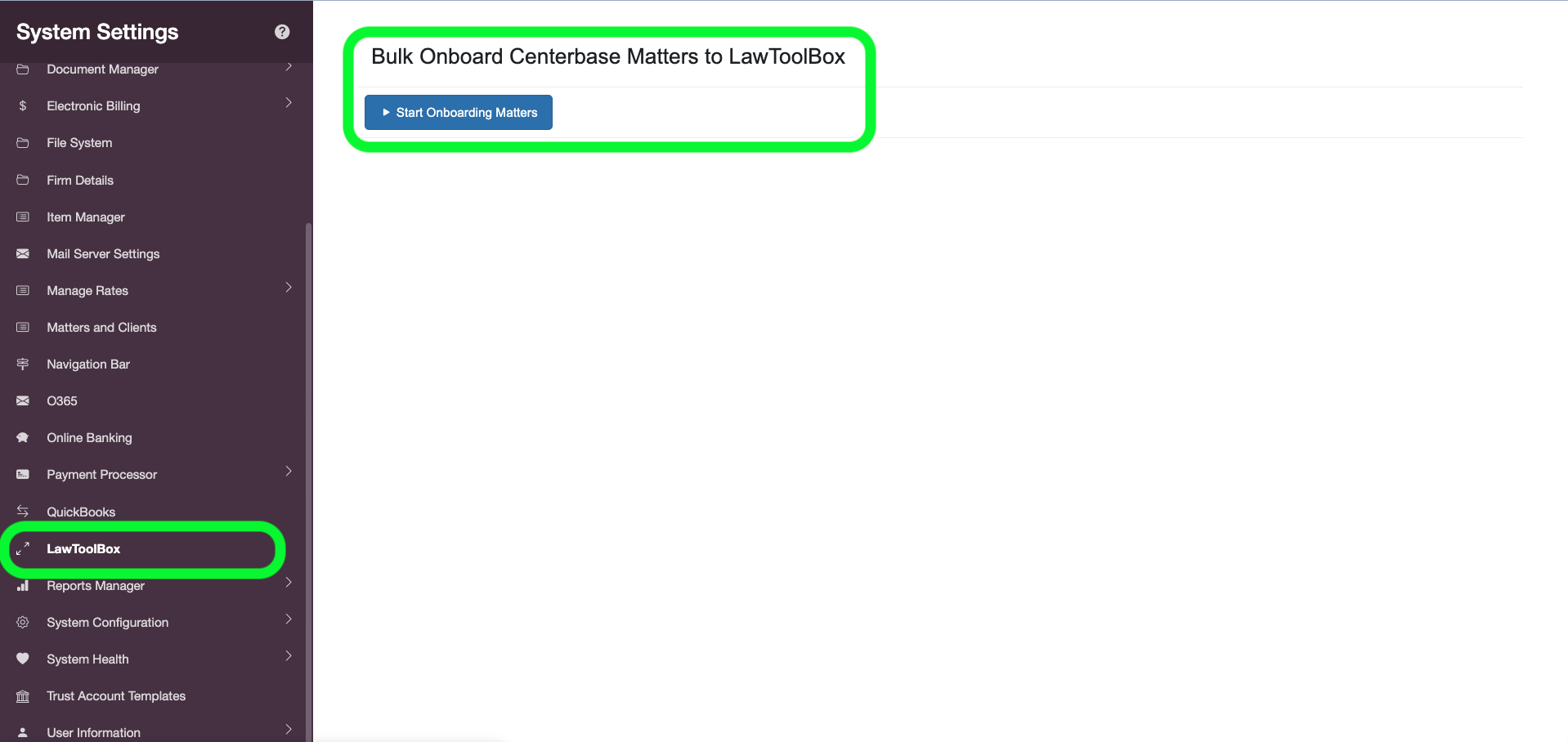
Or Decide if you want to Bulk Activate All Active Matters (Contact your Centerbase CSM for assistance)
This step will skip the "Matter Actions" Send to LawToolBox for currently open matters