
We have a new feature that automatically enrolls your firm for automatic deadline auditing to ensure your outlook events match your LawToolBox entries.
Step 1: Identify
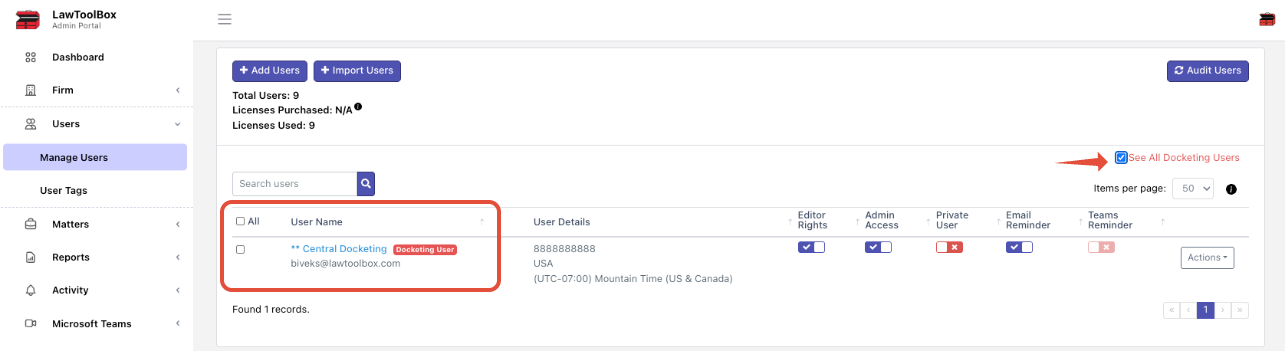
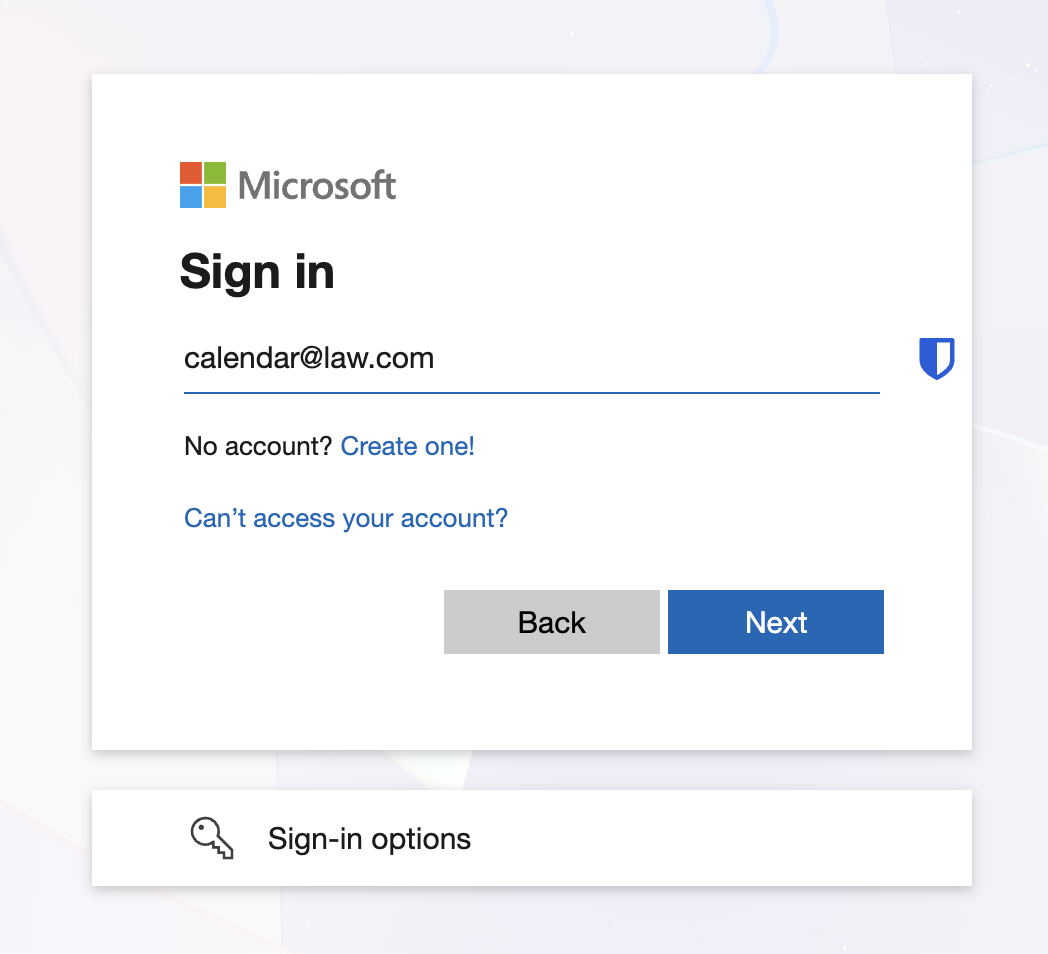
Look for your "Firm Calendar" / "Docketing User" email address
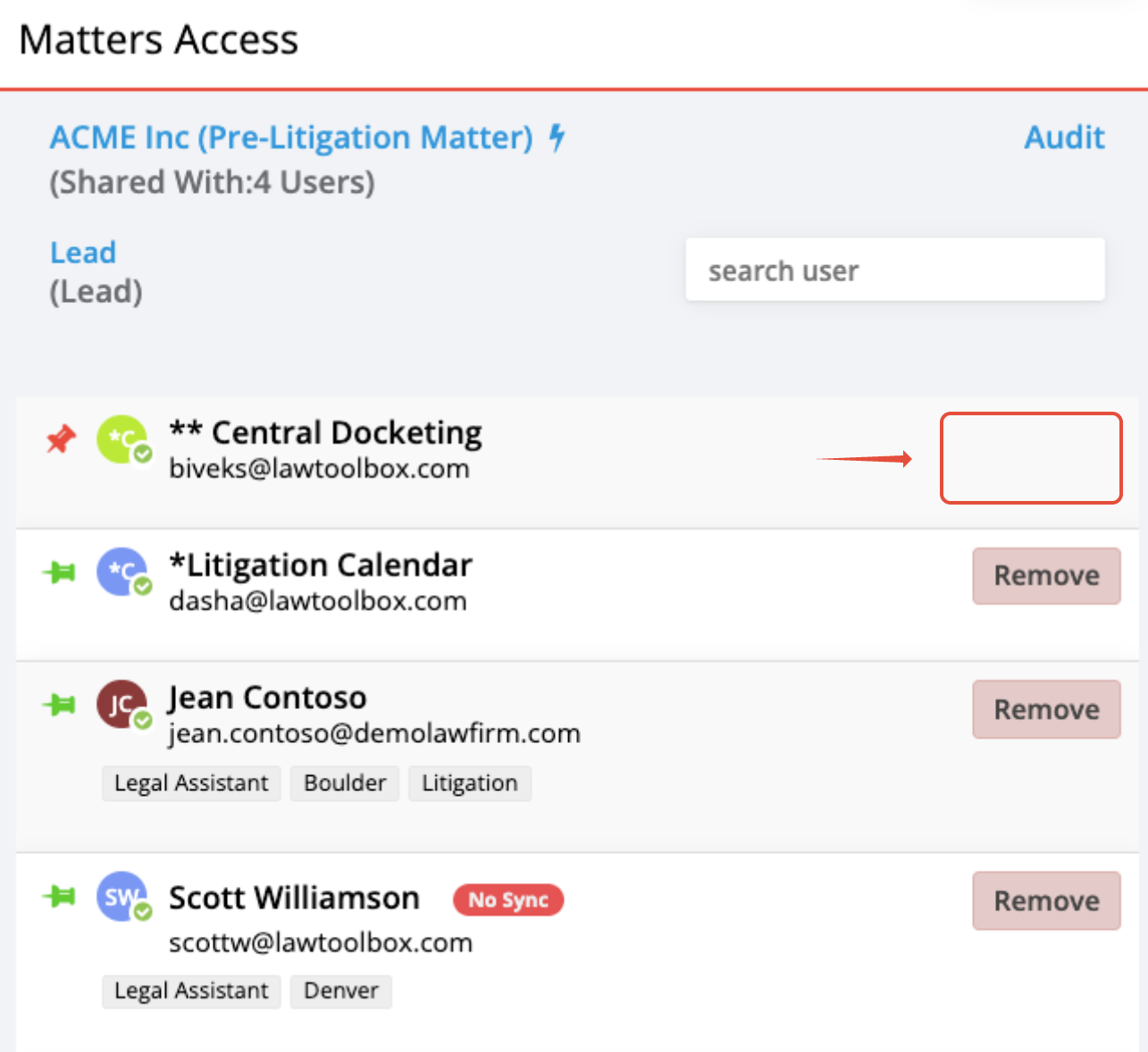
Note: This is a special user who is automatically added to all matters and deadlines for your firm.
Step 2: Log in
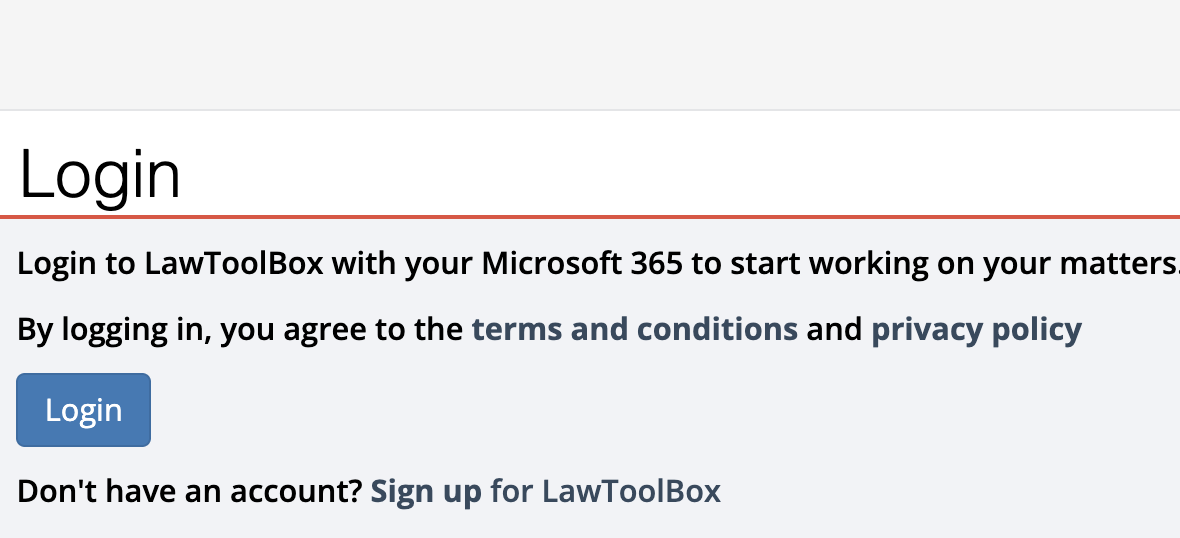
This user needs to login to app.lawtoolbox.com with the "Docketing User" M365 email and password to authenticate.
Recommended to use an "Incognito" window to avoid profile conflicts.
Note: Your IT can follow these steps or reset the password and provide you with the login credentials.
Note: Logging in, allows this user to become a dedicated "audit" user
Step 3: Confirm
Reply to your LawToolBox ticket to validate the "Docketing user" has logged in so the audit can be scheduled overnight for you.
________________________________________________
Step 1: Identify
Look for your "Firm Calendar" / "Docketing User" email address
Look for a user with a red "docketing user" tag
Look for a user that can't be removed
Step 2: Log in
Recommended in "New Incognito Window"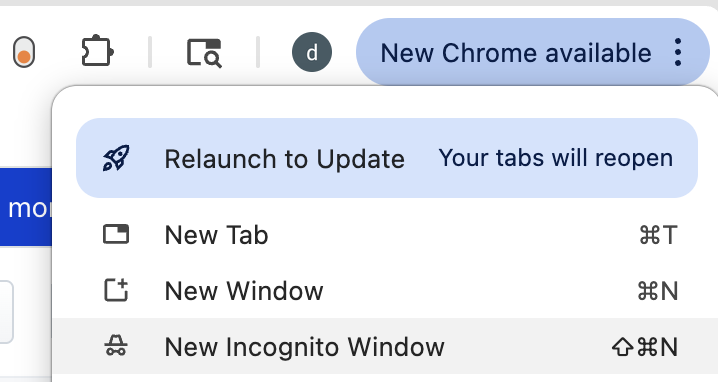
open app.lawtoolbox.com and click "log in"
do not use the admin portal
Step 3: Success!
Please let your LawToolBox team know when you are successfully logged in so we can schedule your resync
Simply reply to your helpdesk@lawtoolbox.com email
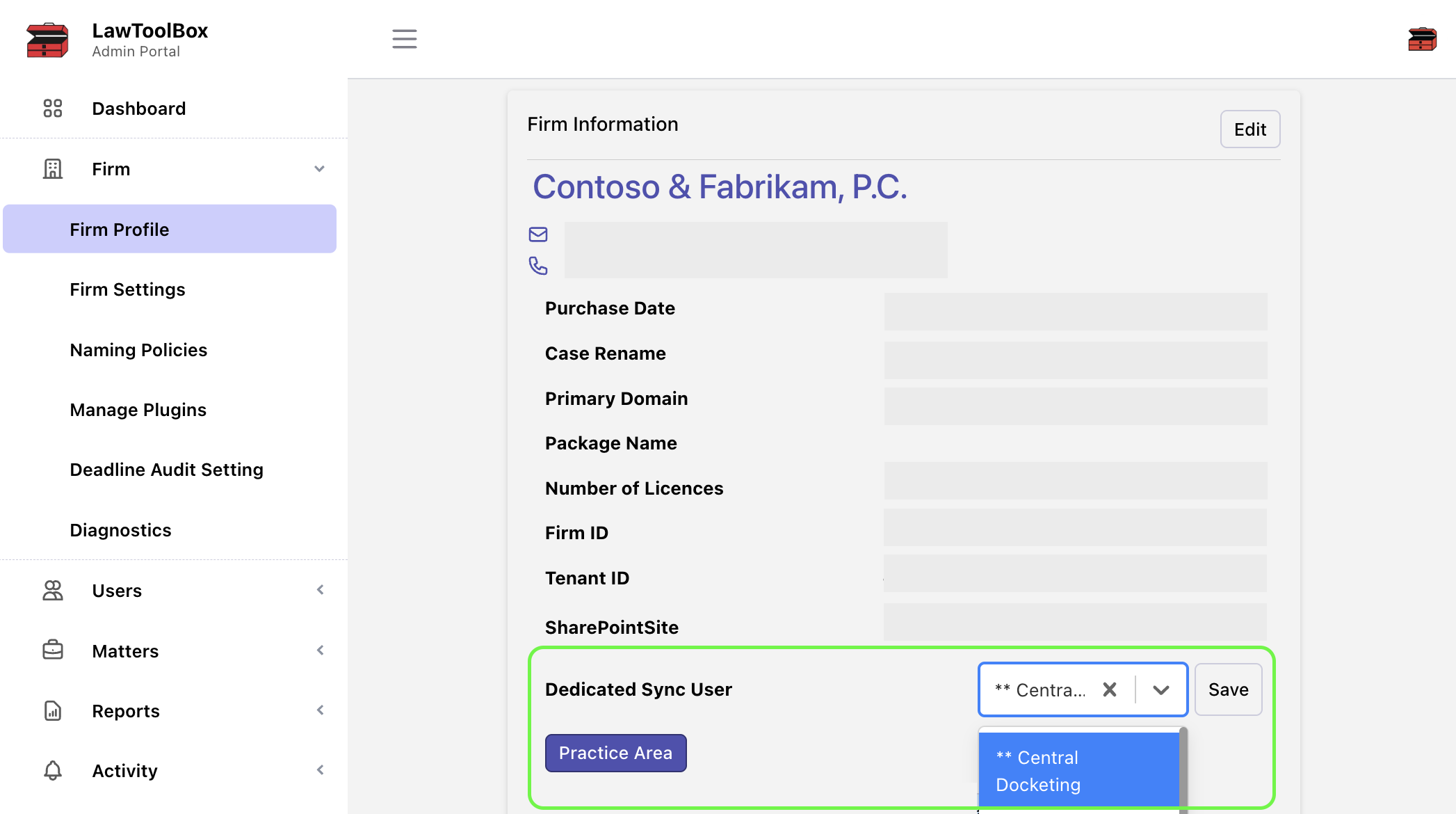
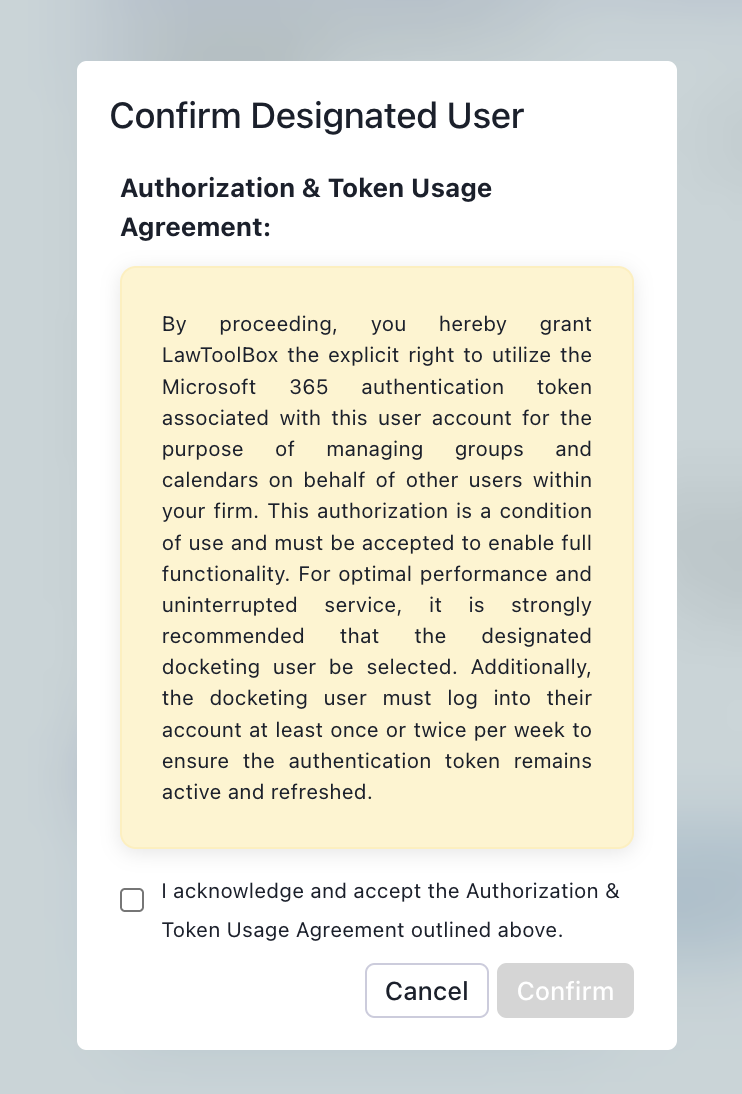
Step 4: Dedicated Sync User
admin.lawtoolbox.com under "firm profile" to save the correct user (auto-populates)
If you noticed deadlines in LawToolBox as "correct", but your Outlook shows an outdated event, please follow the steps below to enroll in a sync audit tool to ensure LawToolBox can automatically address the problem events.