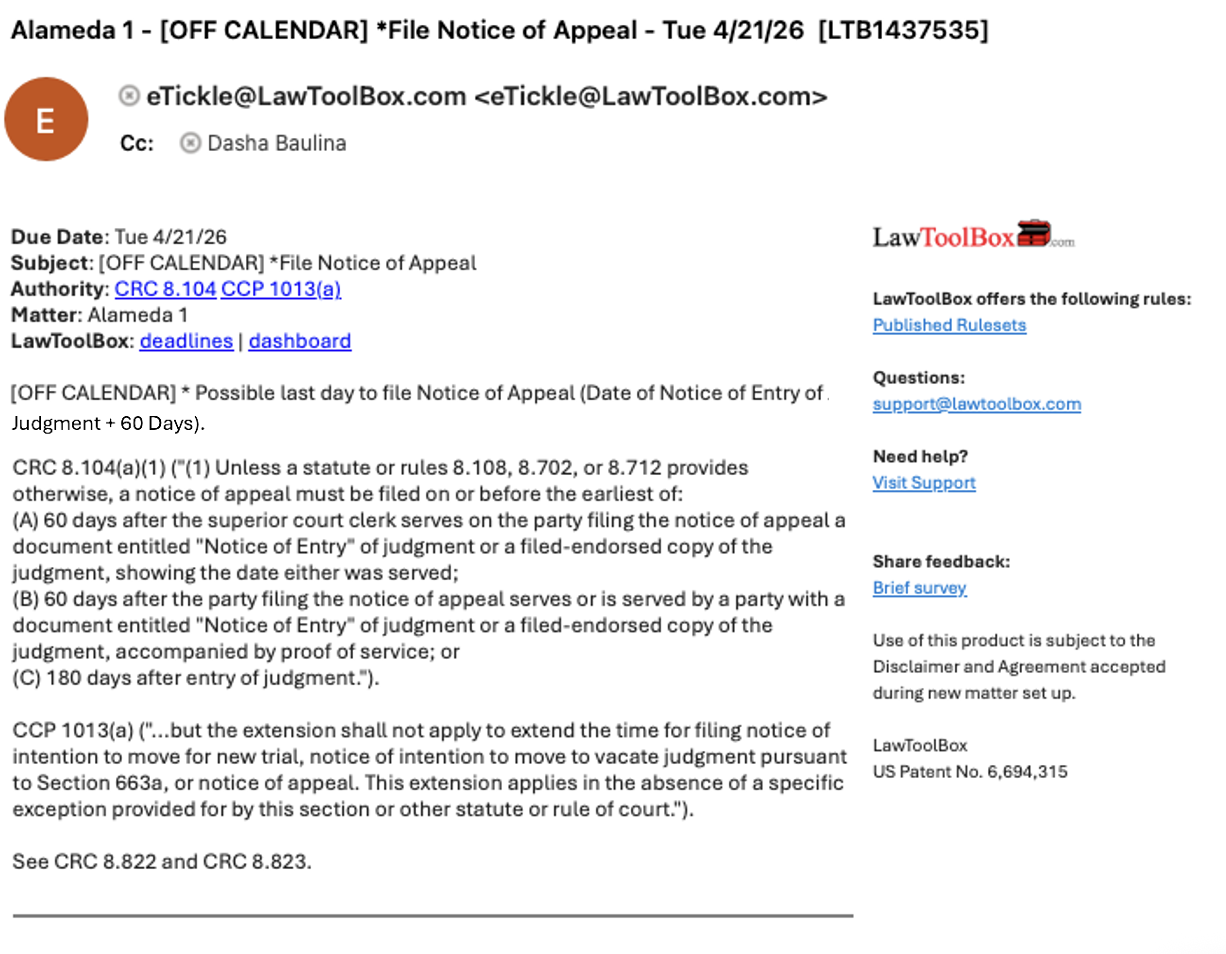
All LawToolBox events in your deadline chart are designed to send email reminders.
These reminders will go out for both synced and un-synced deadlines to ensure no events get overlooked.
If you do not want to delete the events, but would like to suppress the un-synced deadlines from hitting your inbox, see the article below:
- Step 1: Use the label feature to mark deadlines as "Off calendar"
- Step 2: Create an outlook rule to move or delete emails with [OFF CALENDAR] in the subject or body
If you would like to delete the events, please see FAQ - Calendar - Delete multiple deadlines
If you would like to sync the events, please see FAQ - Sync - How to add deadlines to calendar
________________________________________________________________________________
Step 1: Start using deadline labels feature
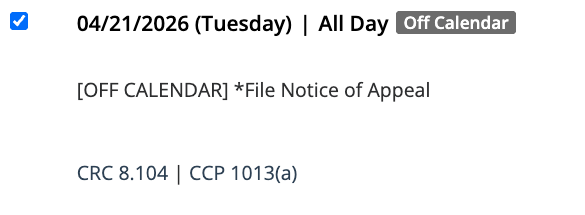
You can mark events as "Off calendar"
This will create a unique identifier on the events and can be used to create an outlook rule to filter from your inbox.
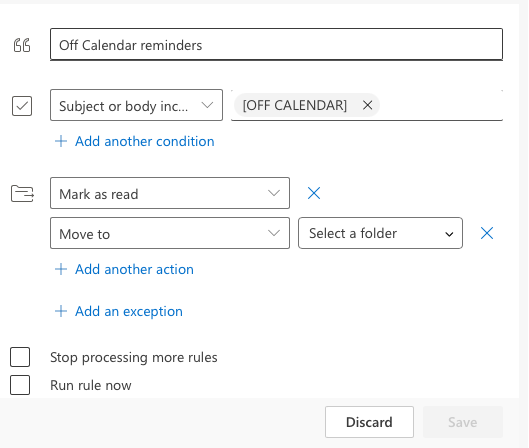
Step 2: Create an outlook rule
Open Outlook > File > Manage Rules and Alerts > New Rule
> Apply rule on messages I receive > Next >
> Select "specific words in the subject or body" >
> Click on specific words > Add rules > [OFF CALENDAR]
> Select move it to the specified folder >
> Click on specified folder >
> Create a new folder “LTB Deadlines” under Mail and Post Items
> Click OK and your Outlook Rules have been set up!
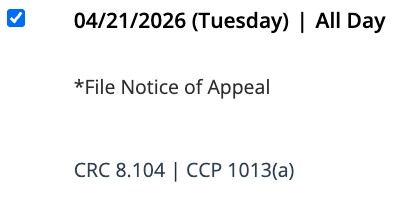
Before Labels:
In LawToolBox
In Outlook
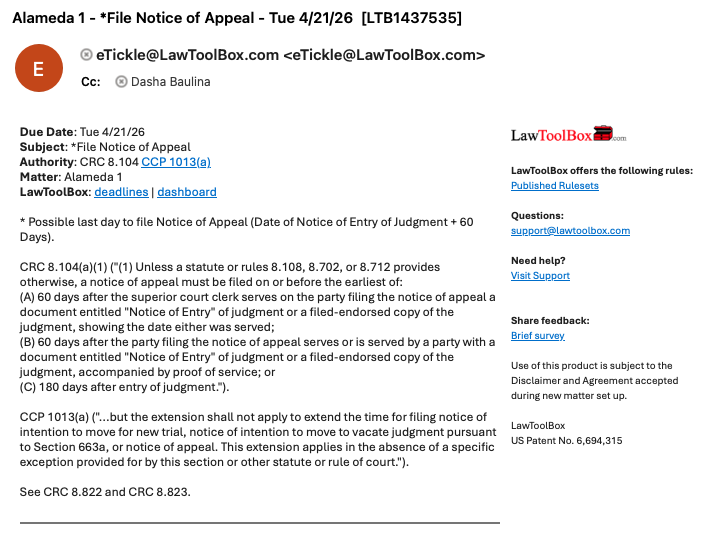
After Labels:
In LawToolBox:
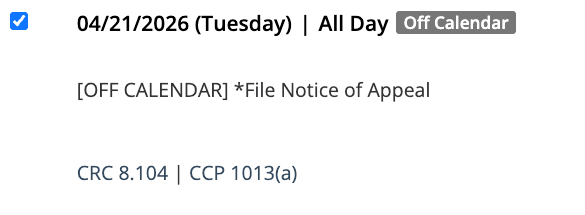
In Outlook: