
This article will walk you through how to enable LawToolBox integration for SurePoint Practice Pro.
Please note, once the integration is enabled, SurePoint Practice Pro will send your active users to LawToolBox.
- You may need to purchase additional LawToolBox licenses M365 Admin: Subscription Management
- If you wish to remove the newly added users, see Admin: How to remove a user in LawToolBox
Step 1: Enable Integration
Open SurePoint Practice Pro
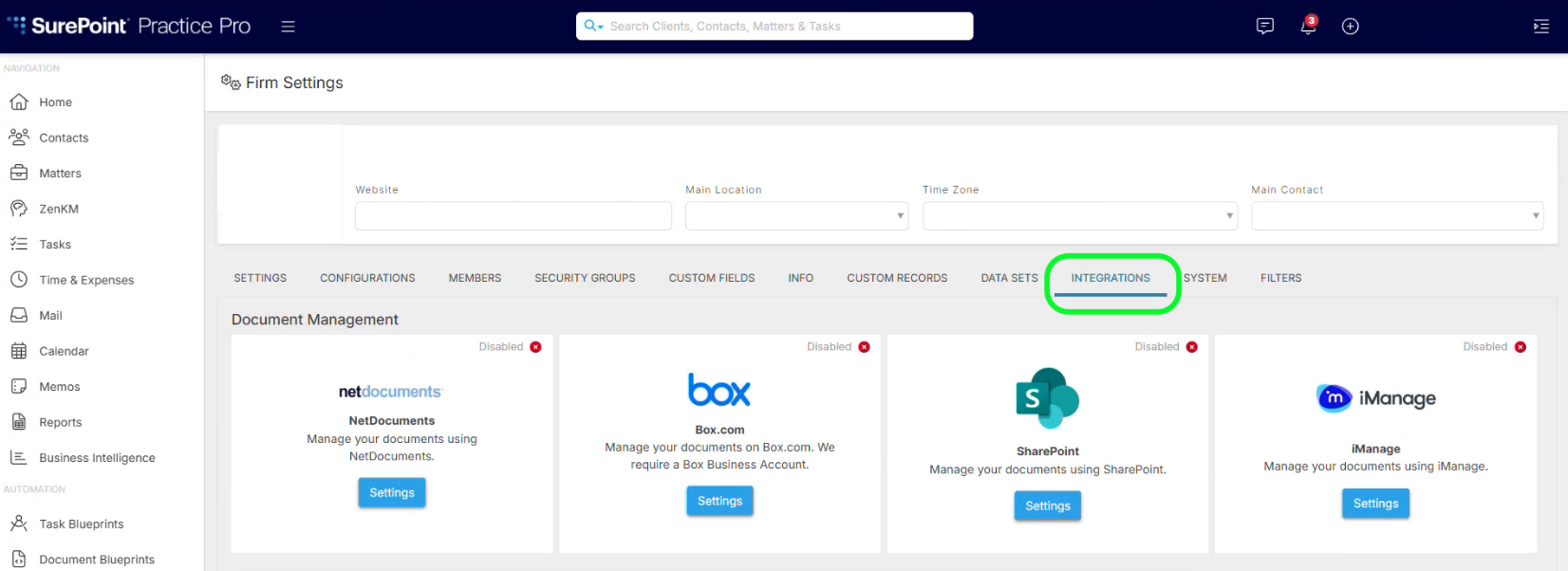
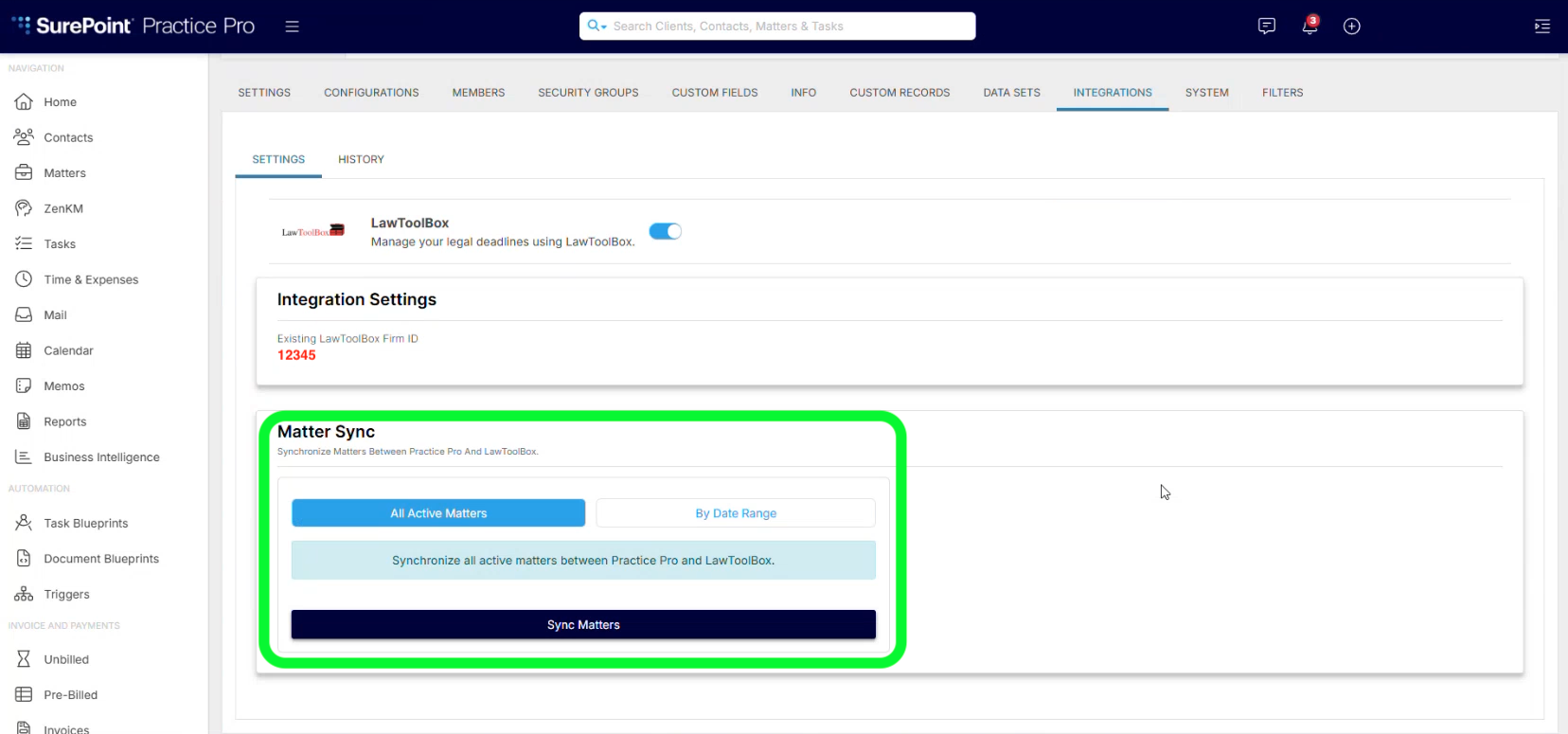
Go to Settings > Integrations
/organizations/settings/integrations
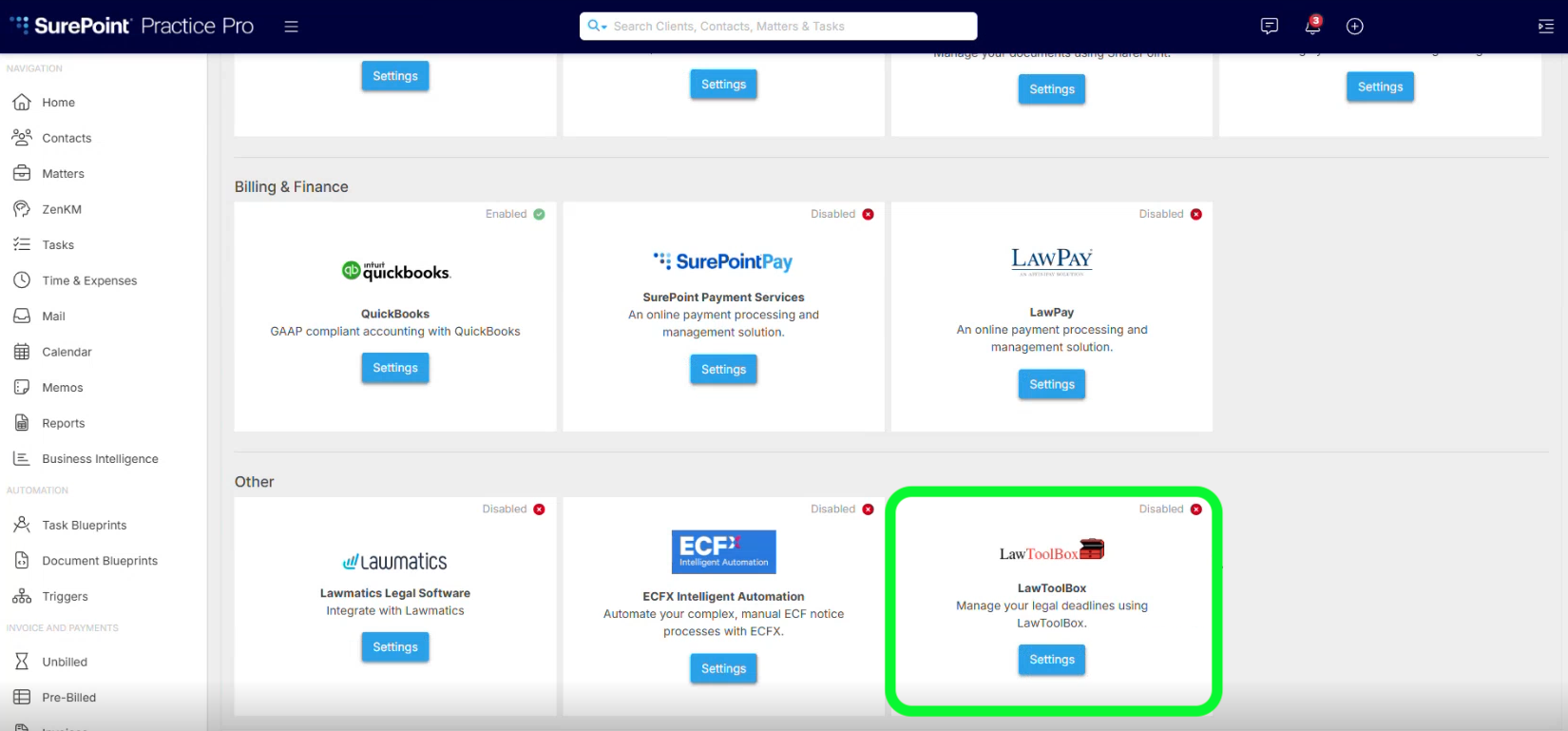
Navigate to find LawToolBox tile
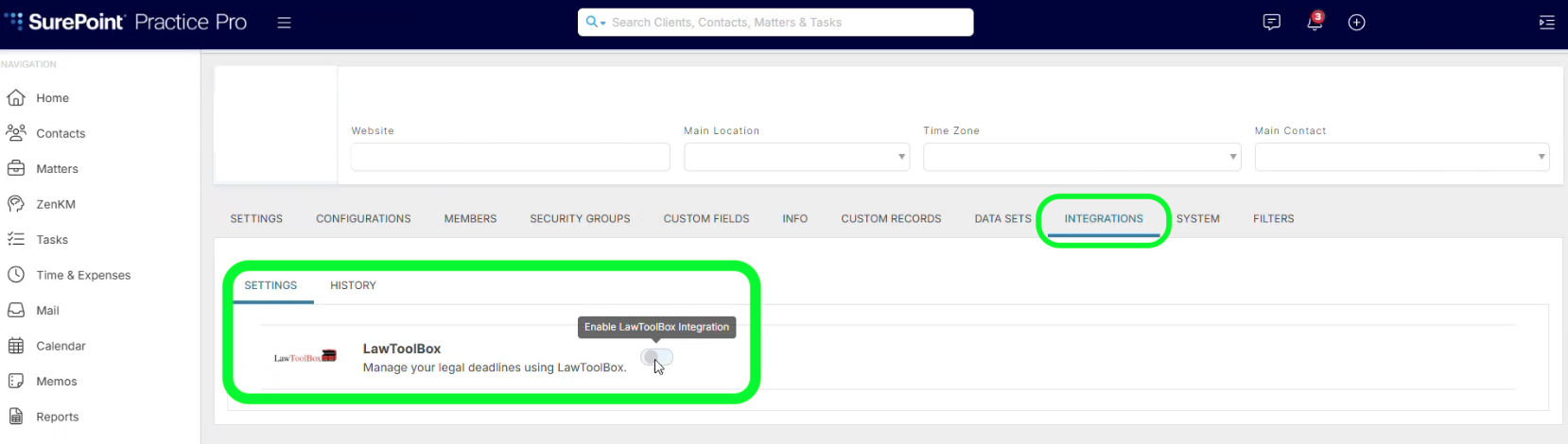
Click Settings & Toggle On
Connect Existing Firm = Add Firm ID
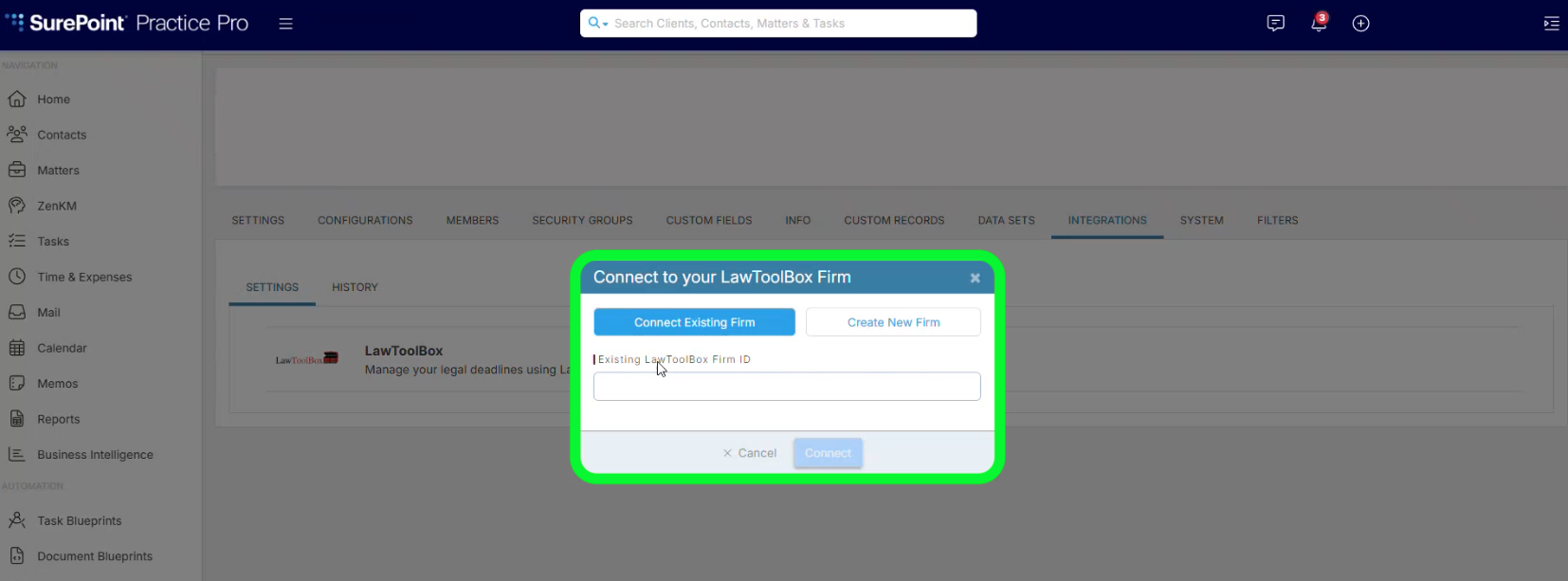
If you are new to LawToolBox, you can choose to activate "All Active Matters"
Note: If you are an active LawToolBox user, do not duplicate existing records
Step 2: Send your first matter
Contacts or Matters > Ellipsis > Sync with LawToolBox
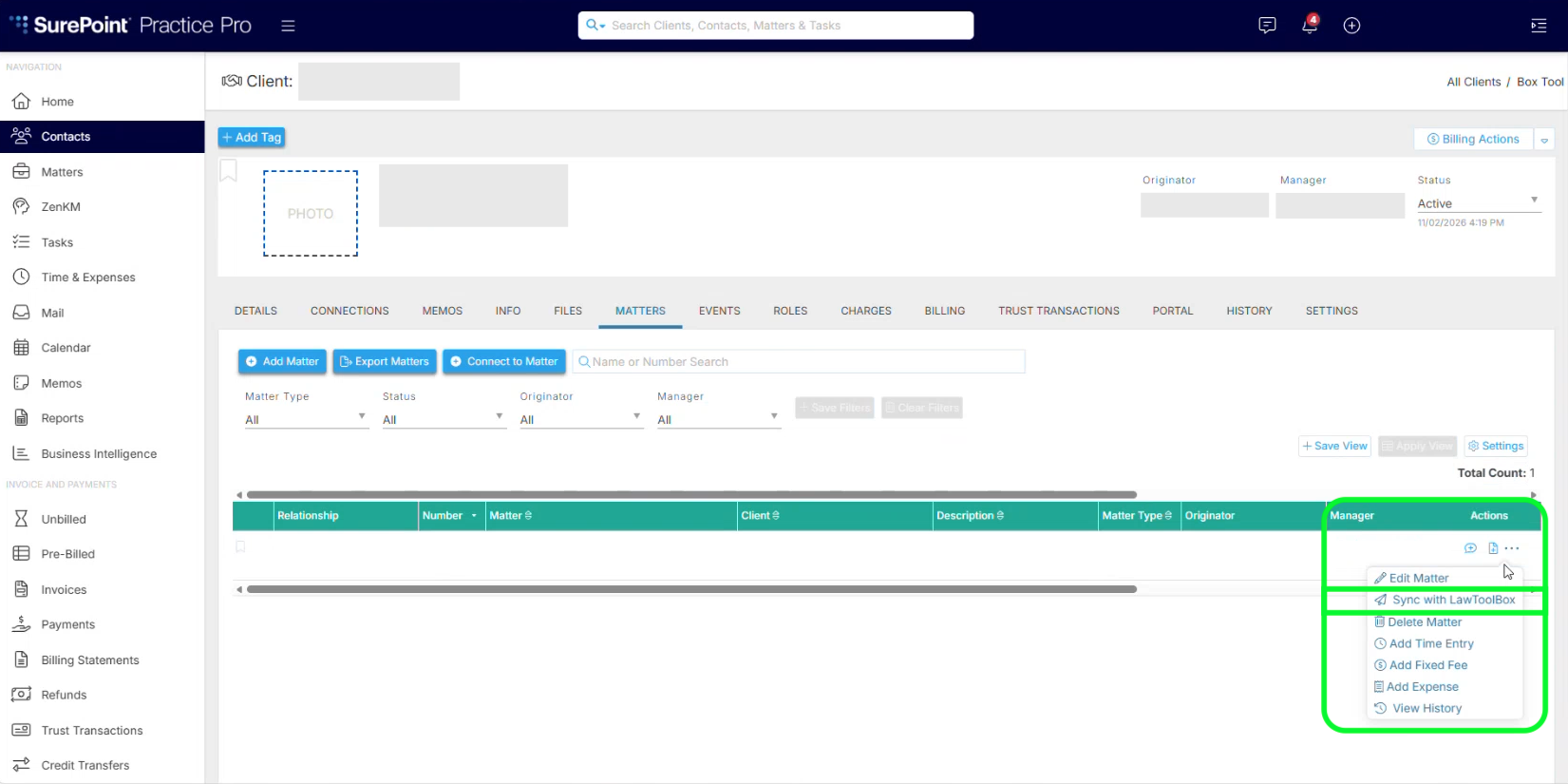
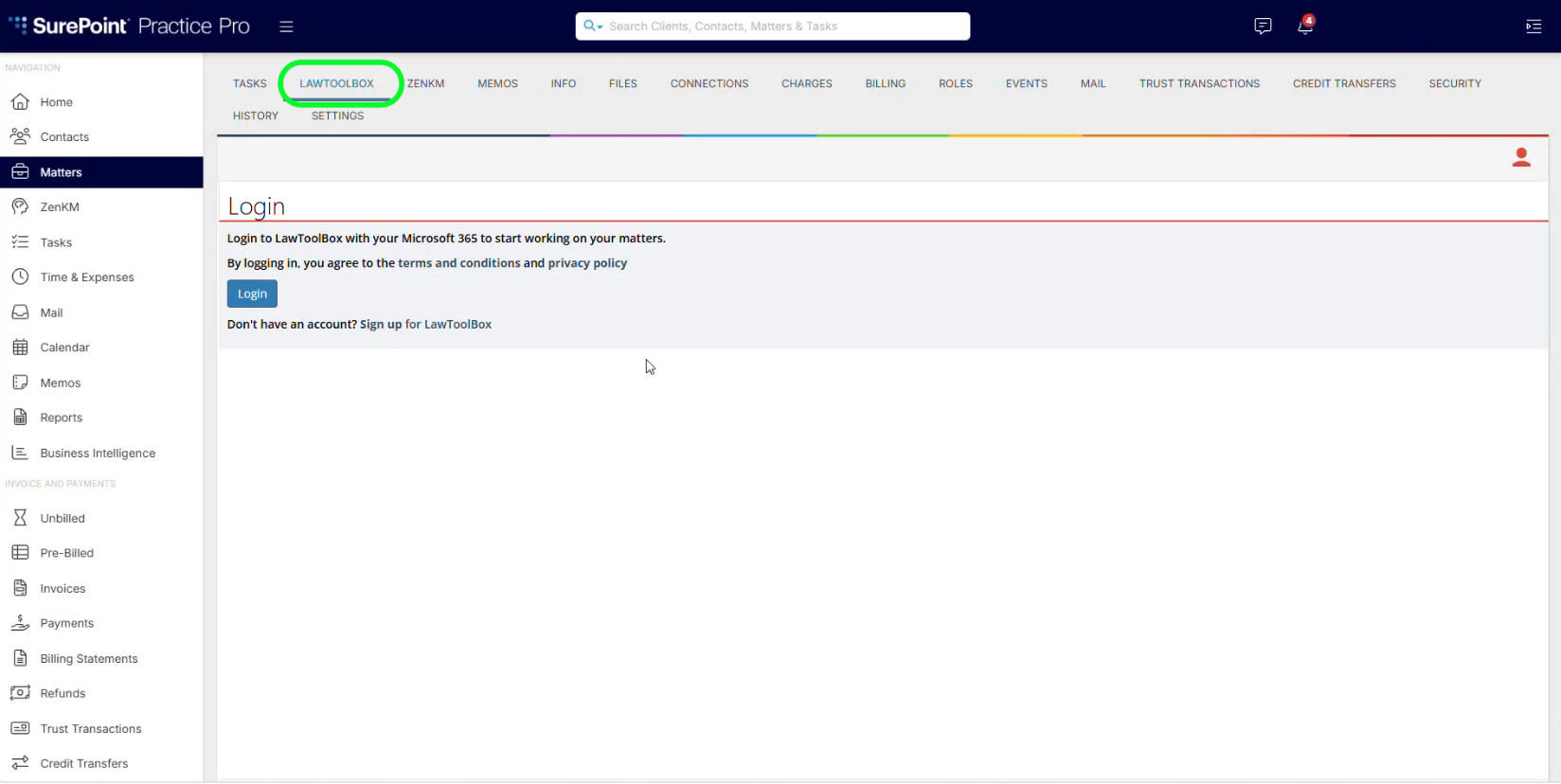
Creates a new Matters in LawToolBox
Read next:
FAQ - Calendar - Calculate deadlines