This article is designed to help you keep track of your LawToolBox deadlines if you are experiencing disruptions.
M365 Status: EX1550543
On Thursday, November 12, Microsoft was experiencing slow downs throughout the country.
On Friday, November 13, the Microsoft service may be partially or fully recovered for your tenant.
For real time updates check with your IT here: https://status.cloud.microsoft/m365/referrer=serviceStatusRedirect
LawToolBox Best Practices:
Use app.lawtoolbox.com in your browser view deadlines and events.
Newly generated or edited deadlines may or may not be synced to Outlook.
Your calendar events may be part of a queue and may arrive later, since LawToolBox leverages Microsoft email delivery.
To ensure they deadlines sync to outlook, please follow the steps below.
We recommend utilizing our date range report & modified deadline reports
1. Date Range Report will help you see upcoming deadlines if your Outlook calendar is impacted.
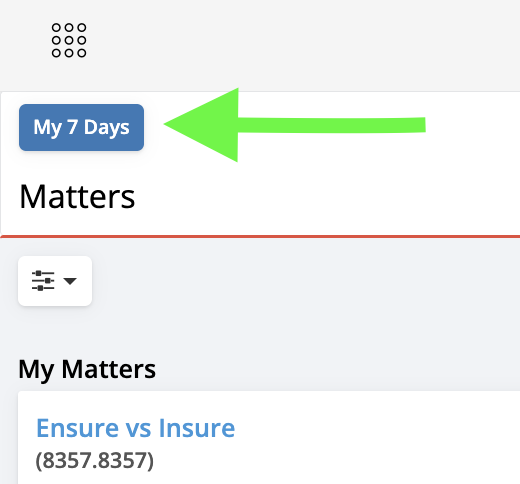
Click "My 7 Days" for an instant report
2. Modified Deadlines Report
Navigate to our reports and select "All reports"
Choose "Modified Deadlines" report and review the deadlines you changed between 11/12 and 11/13
Pay close attention to the sync status bar. We recommend downloading this report for your records.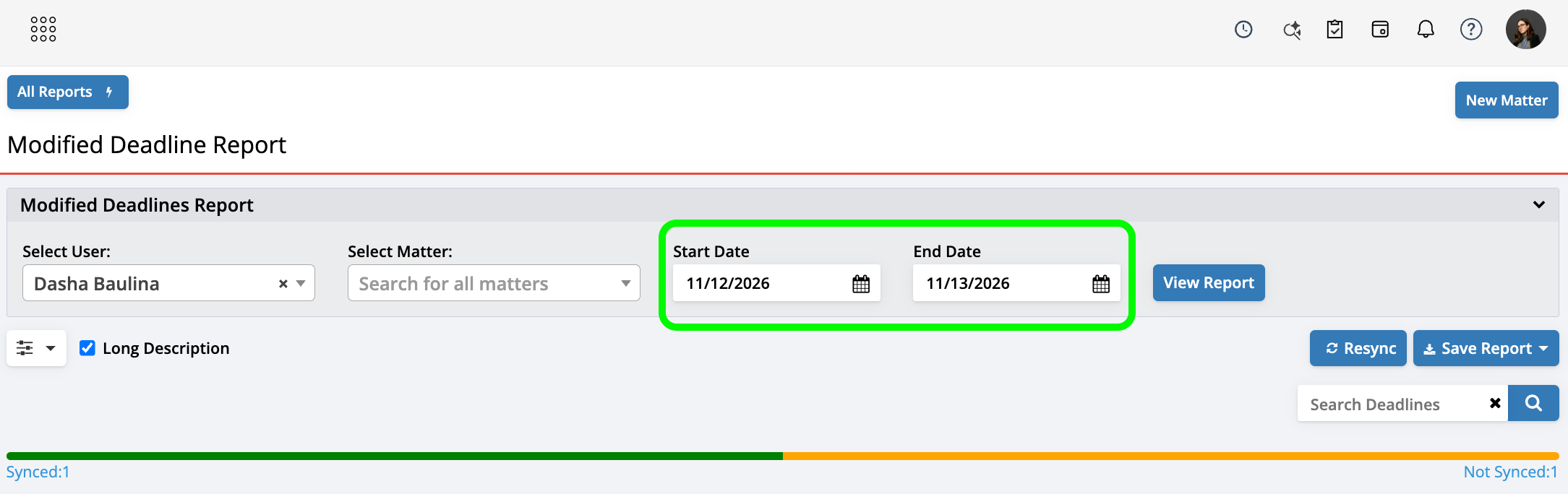
Green Events:
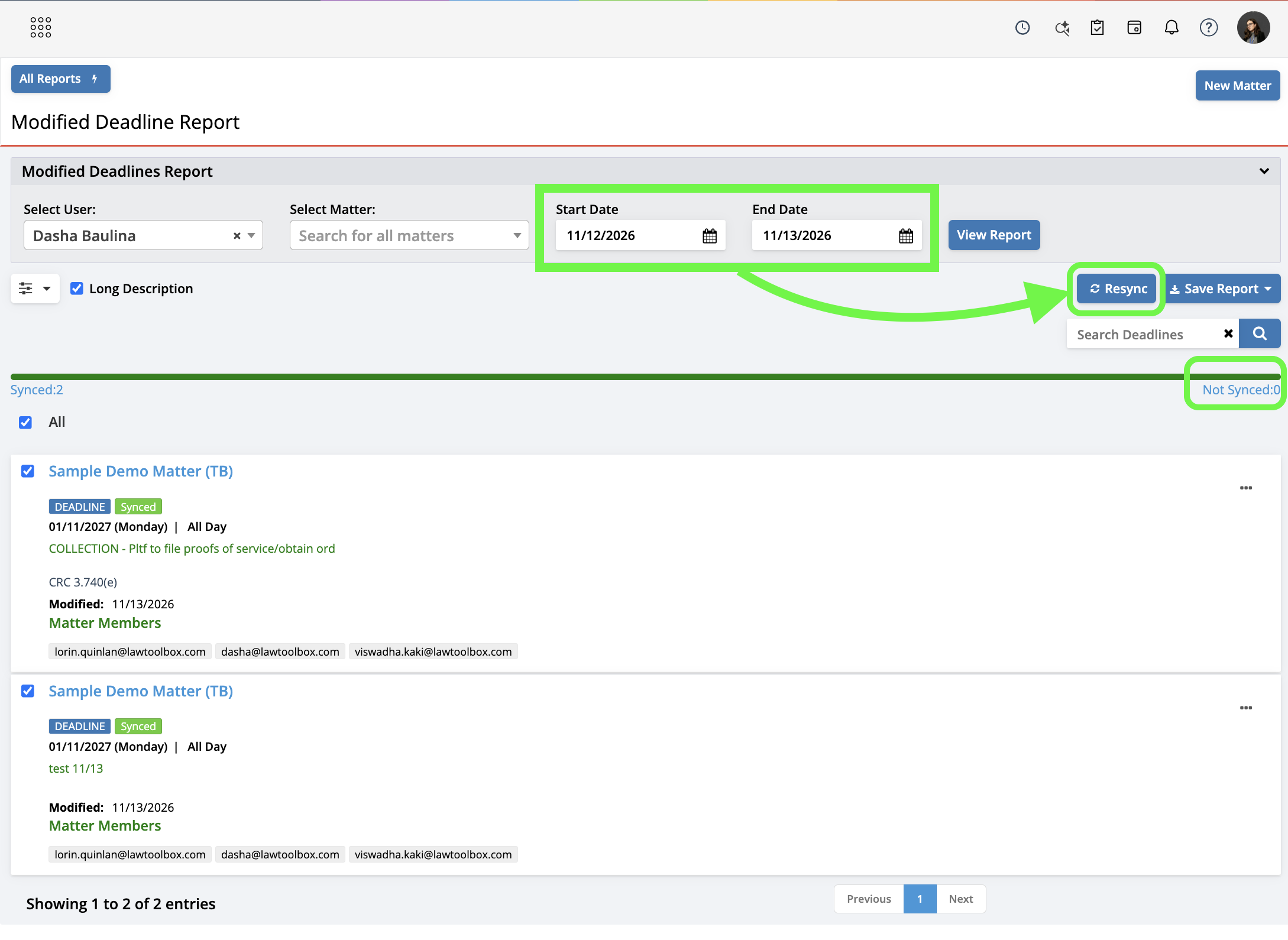
These events are queued to sync to your calendar, but you can force sync them now by clicking the “Resync” Button. Confirm the events are visible in outlook.
Please note, they may still take some time to reach your calendars.
Orange Events:
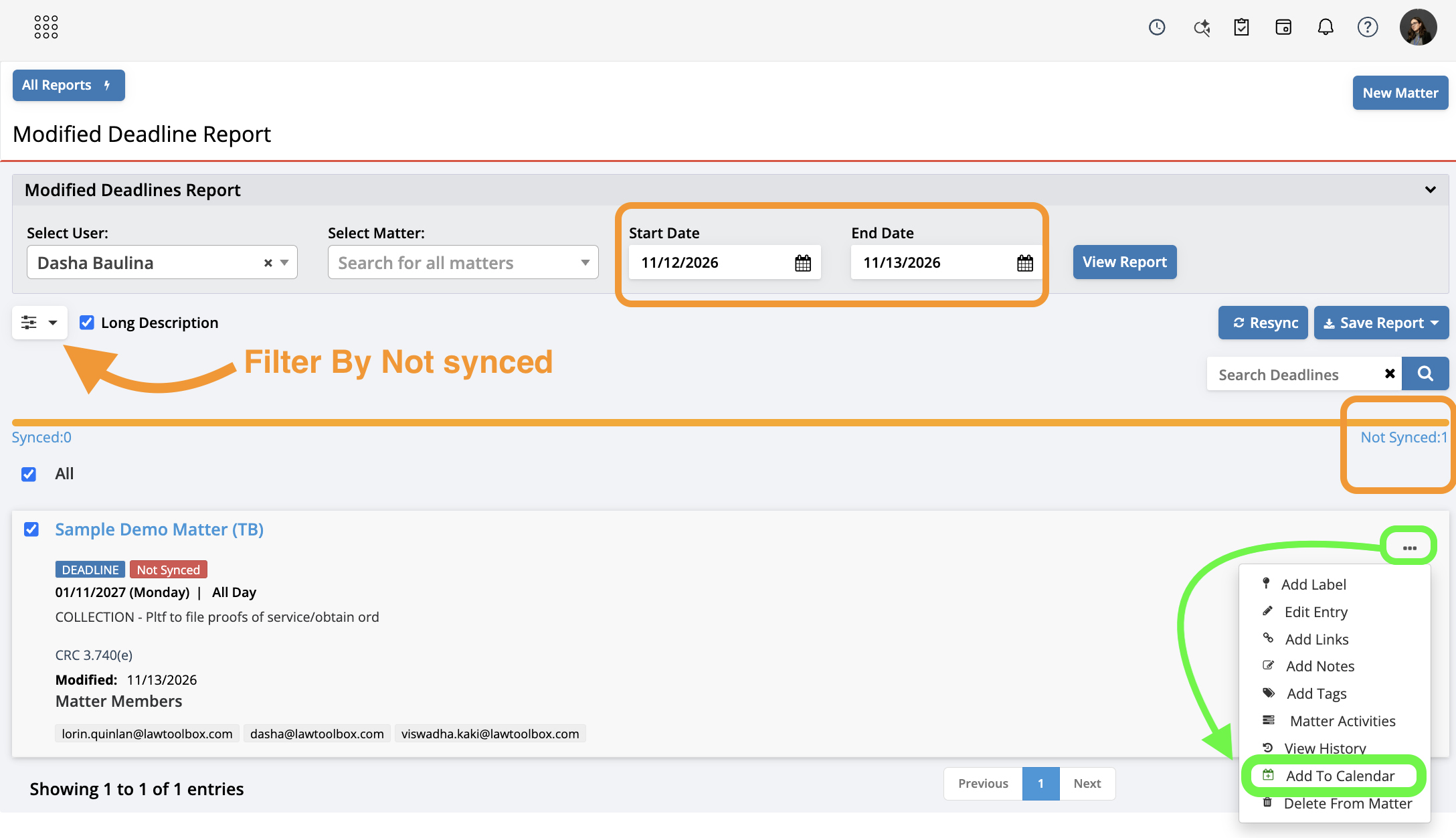
Filter by “Not Synced” and go through each ellipsis to “Add to calendar”. These events may have been the first events you created on 11/12.
Confirm the events turned green (they will disappear off the filtered view) in LawToolBox.
Verify your Outlook calendar to confirm sync is completed.
Please note, they may still take some time to reach your calendars.